Upgrade a service
Move PostgreSQL, the extensions, Patroni and pgBouncer of a service to newer versions from the Updates tab, with a check and a rolling upgrade.
How updates work
Each service pins a release of server packages (see Server packages). Versions change only when you upgrade the service. A service has updates when its pinned release has newer versions, or when you load the server packages of a newer release after a console upgrade. Automatic OS security updates skip these packages: the console is the only update path.
When a service has updates, its Overview shows the Updates available banner, and the Database services list and the service header show the Updates available badge. Both open the Updates tab. An operator runs Check, and an admin runs Upgrade.
Plan a quiet period: an upgrade that restarts PostgreSQL switches over the primary on HA, or stops PostgreSQL on a single node. There is no downgrade (see Backups and rollback).
A new PostgreSQL major (for example 17 to 18) is not one of these updates. Install the updates first, then see Upgrade the PostgreSQL major.
The Updates tab
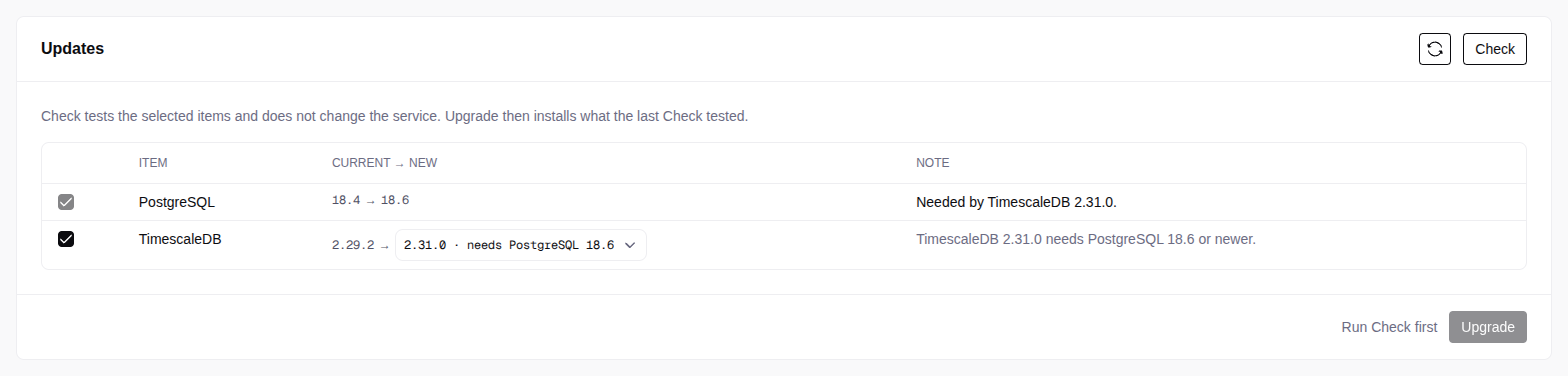
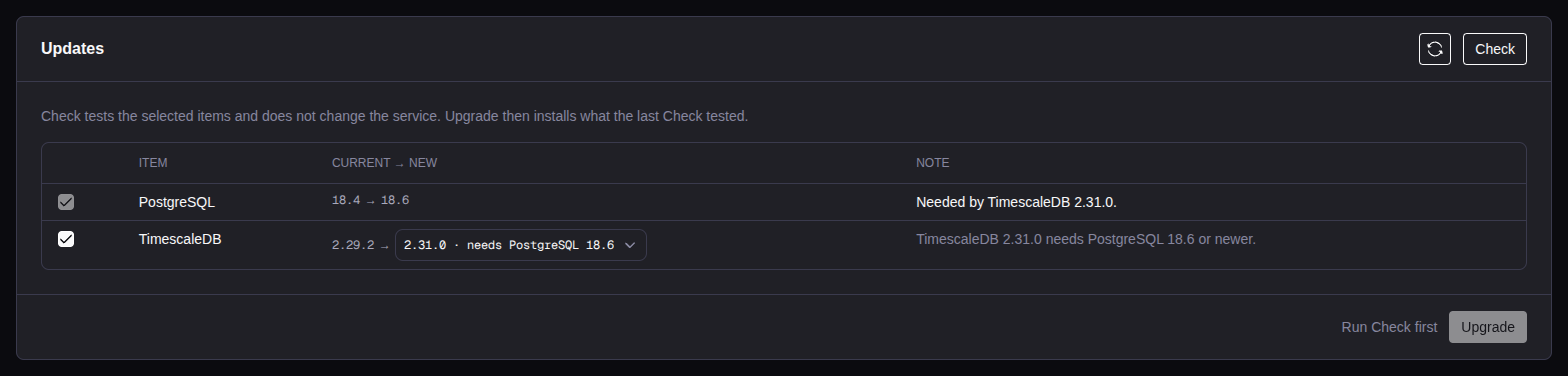
| Column | What it shows |
|---|---|
| Item | PostgreSQL (the minor), each extension, Patroni, pgBouncer, pgBackRest, HAProxy and keepalived (HA), and the console components, for example etcd and the exporters. |
| Servers | Only for a console component. All is every server of the service. |
| Current → new | The installed version and the target. A note shows when a target needs another item or comes from newer server packages, for example needs PostgreSQL 18.6. |
| Note | Why Check added the item, or how it differs, for example No restart: extension update only. |
By default, each item is selected at the newest version of the pinned release, and the pin does not move. To move to a newer release, select an item at its version of that release. Clear an item to leave it out. Some items go together:
- A TimescaleDB version that needs a newer PostgreSQL minor selects and locks the PostgreSQL item (Needed by TimescaleDB 2.31.0). To free it, select a TimescaleDB version that fits the installed minor, or clear TimescaleDB.
- A PostgreSQL minor with no build of the installed TimescaleDB adds the TimescaleDB item.
- An item of a newer release moves the pin. The console adds each item that must move with it.
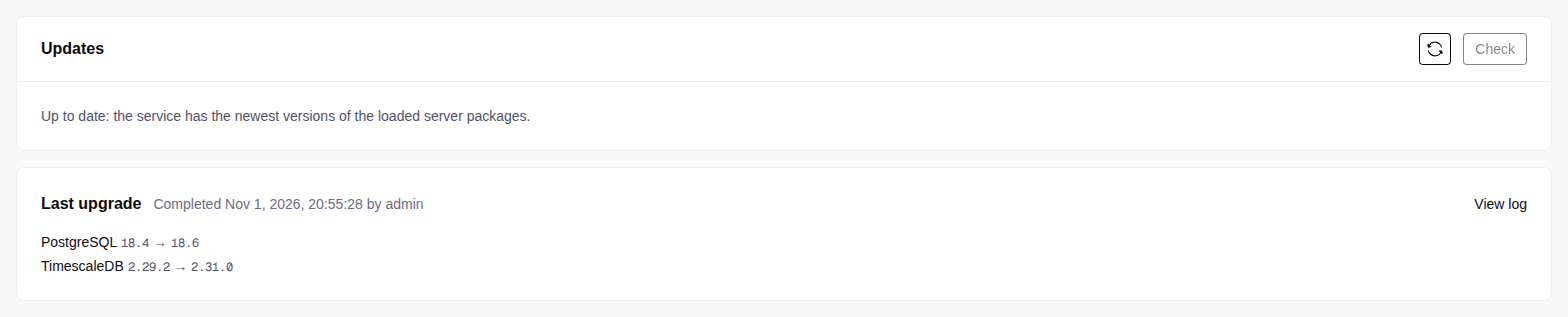
Refresh reads the server packages and the versions of the service again. With no item to upgrade, the tab says Up to date, and Check is off. Check stays on after an upgrade that did not complete or after a restore, to find extension catalogs that are behind. Check and Upgrade need a running service.
Check
Select the items
On the Updates tab, select the items and their target versions.
Run Check
Select Check (operator). Check does not change versions. The servers download the target packages to test the install.
Read the Check report
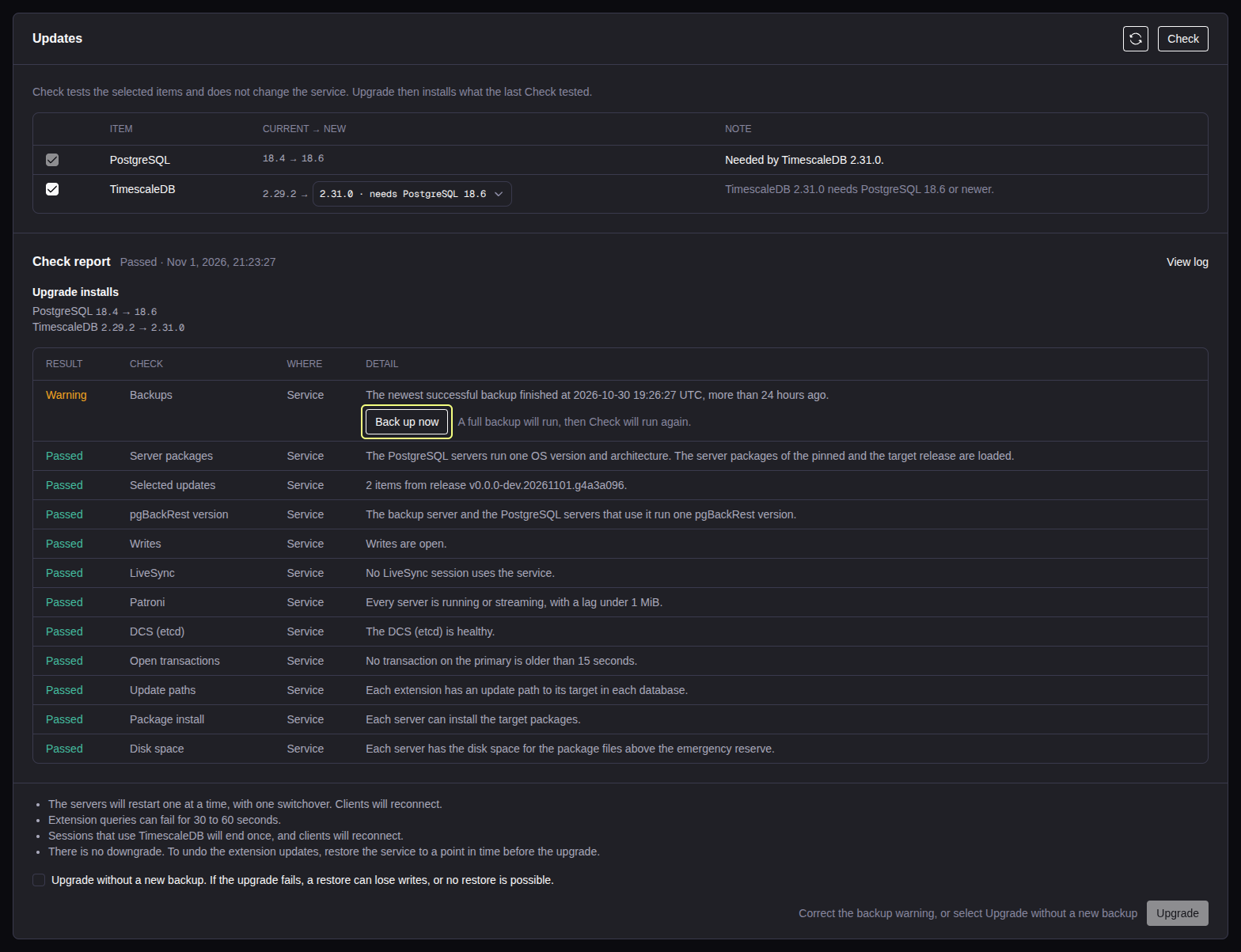
The Check report shows Upgrade installs (the items, also the items that Check added) and one row for each check. Blocked rows come first, then Warning, then Passed. Upgrade stays off while a row is blocked. Correct the cause and run Check again. If you cannot resolve a blocker, do not upgrade: contact support.
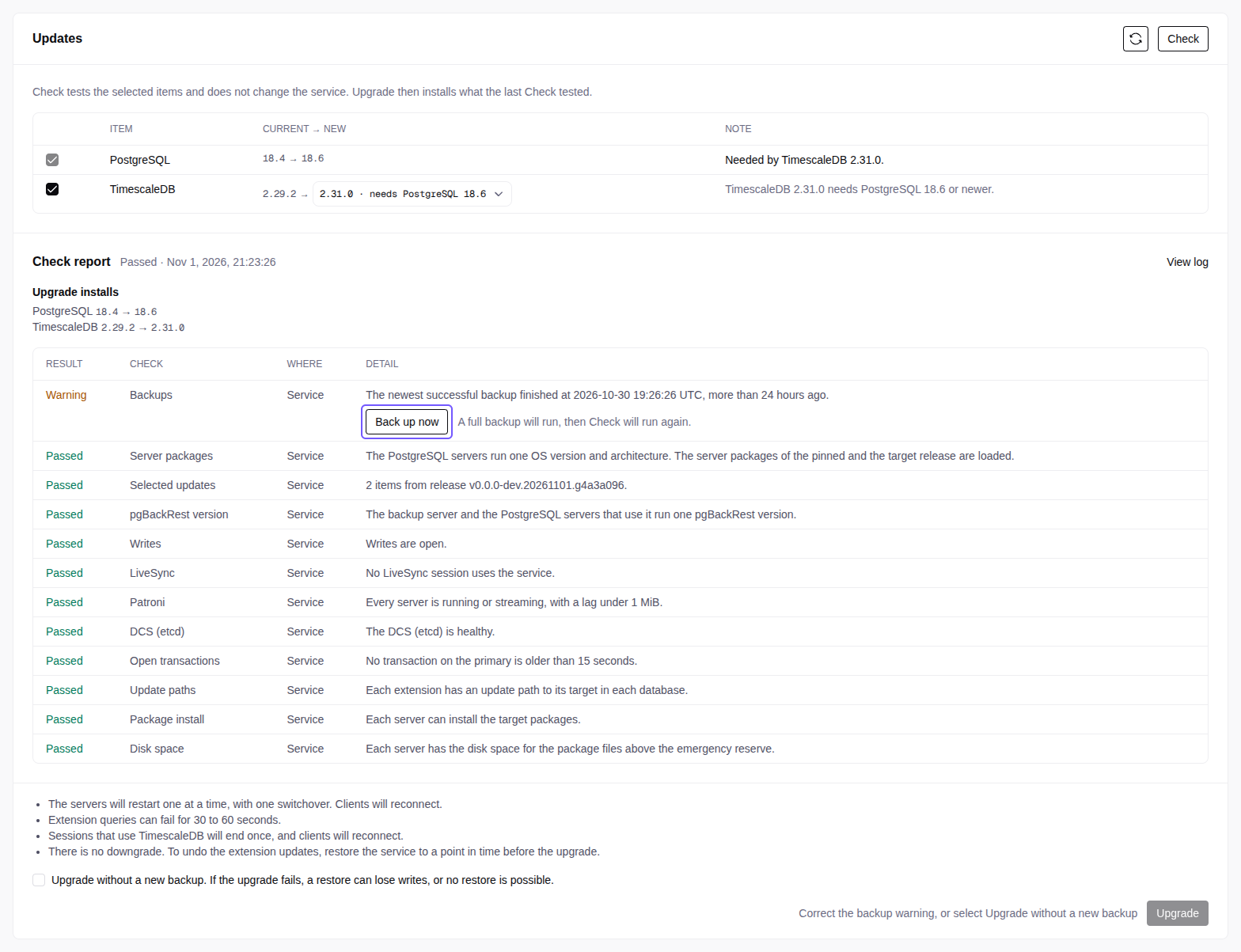
Blockers that you correct outside the Updates tab:
- The PostgreSQL servers of the service do not run one OS version and architecture.
- The server packages of the pinned release are not loaded. Load them again: the upgrade needs them to put a failed server back.
- A server does not have the disk space for the package files.
- A LiveSync session uses the service.
- A server has a newer version than the target of a selected item. Clear the item, or select that version or a newer one.
Backups and rollback
There is no downgrade. An extension update changes the extension catalog in each database, and the console cannot undo it. To recover data from before an upgrade, restore the service to a point in time just before it (PITRPITRPoint-in-time recovery: restore a service to a time that its backups cover.Restore). The restore keeps the current pin. See Restore.
The Backups row of the Check report never blocks. It passes when a successful backup is less than 24 hours old and WAL archiving is healthy. Otherwise, it warns and names the case. The upgrade never takes a backup itself.
- Back up now (operator) runs a full backup, then Check again.
- To continue without a usable backup, select Upgrade without a new backup above Upgrade. A restore can then lose writes, or be impossible. The audit log records your choice.
Upgrade
Upgrade (admin) runs exactly the plan of the last Check. It stays off until a Check passed for the same selection less than one hour ago. Each upgrade needs a new Check.
Start the upgrade
Review the Check report, then select Upgrade. If the button is off, resolve the condition shown next to it, and run Check again if necessary.
Wait for the operation
The band at the top of the tab shows the progress. View logs opens the log on the Operations tab. Do not start another operation on the service.
Check the service
Make sure that the service Overview is healthy and that the clients reconnect. The tab says Up to date, or lists the remaining items. If the operation fails, see When an upgrade fails.
What clients see during the upgrade. All items that need a PostgreSQL restart share one rolling restart:
- HA service. The replicas upgrade one at a time. Then the console switches over to an upgraded replica, and clients reconnect once. Then it upgrades the old primary. The VIP moves once.
- Single node. PostgreSQL stops and starts once: a short outage. Stop on the Operations tab is off during that time.
- Extension queries can fail for 30 to 60 seconds between the restart and the catalog update, for example TimescaleDB Toolkit functions and Apache AGE queries. Each pooled connection that loaded the old TimescaleDB library gets one error, and the client reconnects.
- When an item changes the backup server or the DCS cluster (for example pgBackRest or etcd), the other services that use them cannot start an operation or a manual backup until the upgrade ends.
When an upgrade fails
Open View logs on the Updates tab to find the failed step and its cause. The service can show Failed. It changes back to running when it is healthy again. Wait for that before you run Check again. If it does not return to running, contact support. Do not assume that a rollback completed.
- During the package pass before the switchover, the console tries to put the failed server back on the pinned versions. Make sure that PostgreSQL runs and, on HA, the replica streams. If not, contact support. When the service is healthy, correct the cause and run Check and Upgrade again. Components that moved before the package pass can already be at the new version.
- After the switchover, the console does not roll back. Run Check and Upgrade again: it continues with the servers that are not upgraded, with no second switchover. Until then, the old primary is not a safe failover target.
- A failed extension catalog update: run Check and Upgrade again. When each package is at its target, the upgrade runs only the catalog update.
After a restore to a time before an upgrade, Check finds the catalogs that are behind their packages, and Upgrade runs only the catalog update.