Upgrade the PostgreSQL major
Move a service to a newer PostgreSQL major, for example from 17 to 18, from the Updates tab: a Check, a fresh full backup, and a maintenance window.
How a major upgrade works
A major upgrade moves a service to a newer PostgreSQL major, for example from 17 to 18. It needs a maintenance window: PostgreSQL stops on every server, and clients cannot connect. An operator runs Check, then an admin starts the upgrade. You choose one of three modes:
| Mode | Window grows with | Free disk on the primary | Replicas | The way back after the new major starts |
|---|---|---|---|---|
| Link (recommended, the default) | The size of the catalog (for example the number of TimescaleDB chunks) | The new catalog | Updated in the window | Restore a backup into a new service. |
| Copy | The size of the data | The size of the data | Rebuilt one at a time after the window | Roll back in place until you remove the files of the old major. Every write since the start is lost. |
| Swap (target PostgreSQL 18 or later) | The size of the catalog. Can be faster than Link with many tables. | The new catalog | Rebuilt one at a time after the window | Restore a backup into a new service. |
While replicas are rebuilt, the service has fewer replicas.
- The target is any newer major in the pinned release of the service. An upgrade from 17 to 19 runs in one window. The pin does not change (see Upgrade a service).
- TimescaleDB and the other extensions keep their versions. The target minor must have a build of each installed version. Upgrade an extension after the major upgrade, with a normal update.
pgauditis the exception: its version follows the major (17.1, 18.0). Its settings stay.- A major upgrade never runs with the other updates of the service. When only a newer loaded release has a newer major, the console says so. First move the service to that release on the Updates tab, then upgrade the major.
Before you start
Check does not look at the Checksum errors mark. Look at Backup history yourself. Do not continue with a corrupt backup: see Backups found corrupt pages.
Check refuses until each condition is true. There is no override.
- A fresh full backup. The newest successful full backup is less than 24 hours old, and WAL archiving is healthy. A service with no backups cannot do a major upgrade.
- No
ageextension.pg_upgraderefuses a database with Apache AGE. For each database that Check names: export the graphs, dropage, upgrade, createageagain, and import the graphs. Or deploy a new service on the new major and copy the data withpg_dumpandpg_restore. - Writes are open (a valid license), and no LiveSync session uses the service.
- Patroni and the DCS are healthy. Every server is running or streaming, with a small replication lag.
- The packages of the new major are loaded: the server packages of the pinned release, and a server components pack with tsdbe for the new major.
- Each parameter exists in the new major, and each override is in its range. The row links to the Configuration tab: reset or change the override there (see Settings).
- Disk space for the new packages on each server, and on the primary for the new catalog (Link, Swap) or the data (Copy), above the emergency reserve. A refused disk row turns off only its mode.
- No user tablespace. Move the objects to the default tablespace and drop the tablespace.
- No files of an earlier major on the servers (see Remove the files of the old major).
The major upgrade section
When the pinned release has a newer major, the Updates tab shows the section PostgreSQL 18 available. After the upgrade lists the new PostgreSQL minor and each extension version. A version that stays the same shows (unchanged). When the tab also has other updates, install them first.
- Target shows when there is more than one newer major or minor. The next major and its newest usable minor are selected first. A minor without a build of an installed extension shows (unavailable).
- Check and Upgrade are for the selected target. Upgrade stays off until the last Check is for that target.
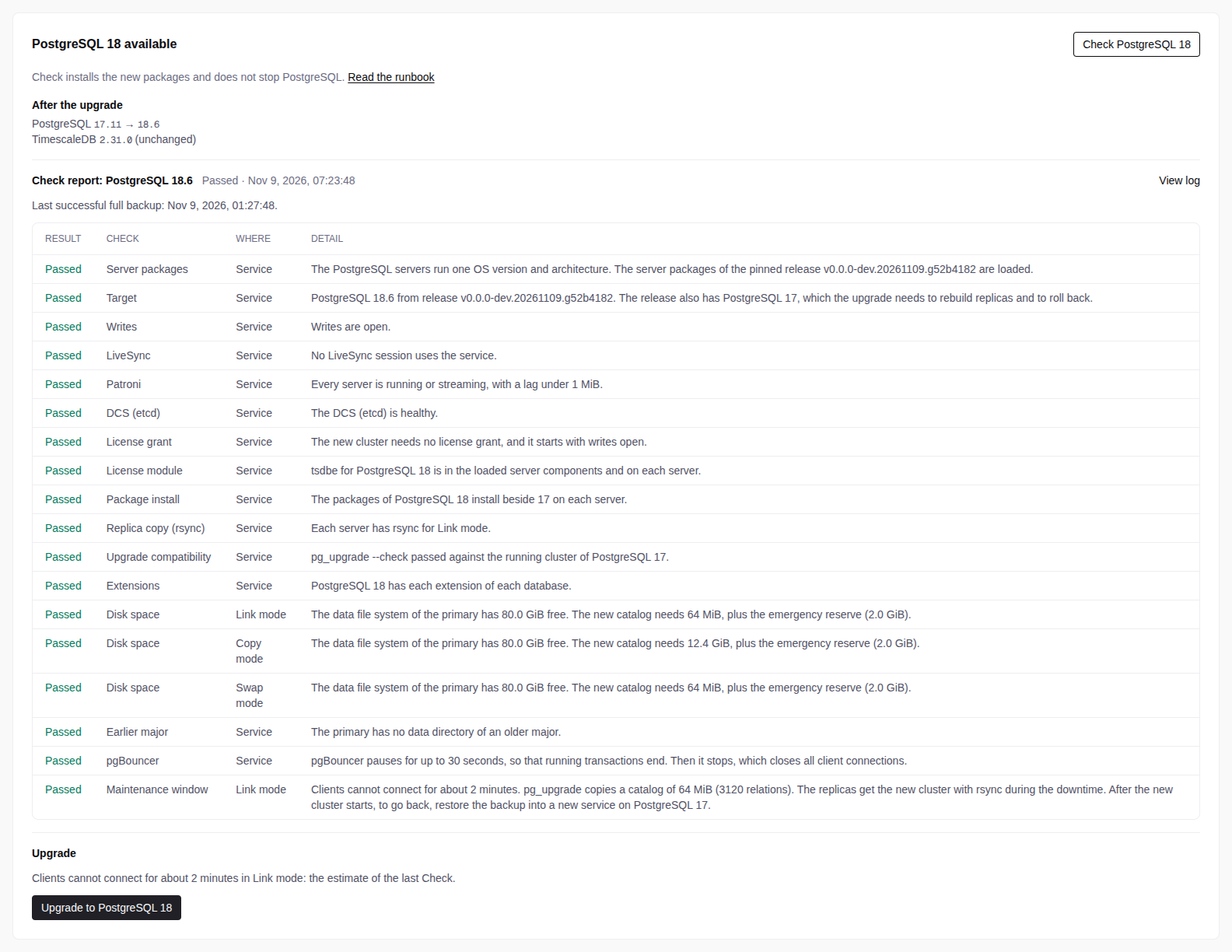
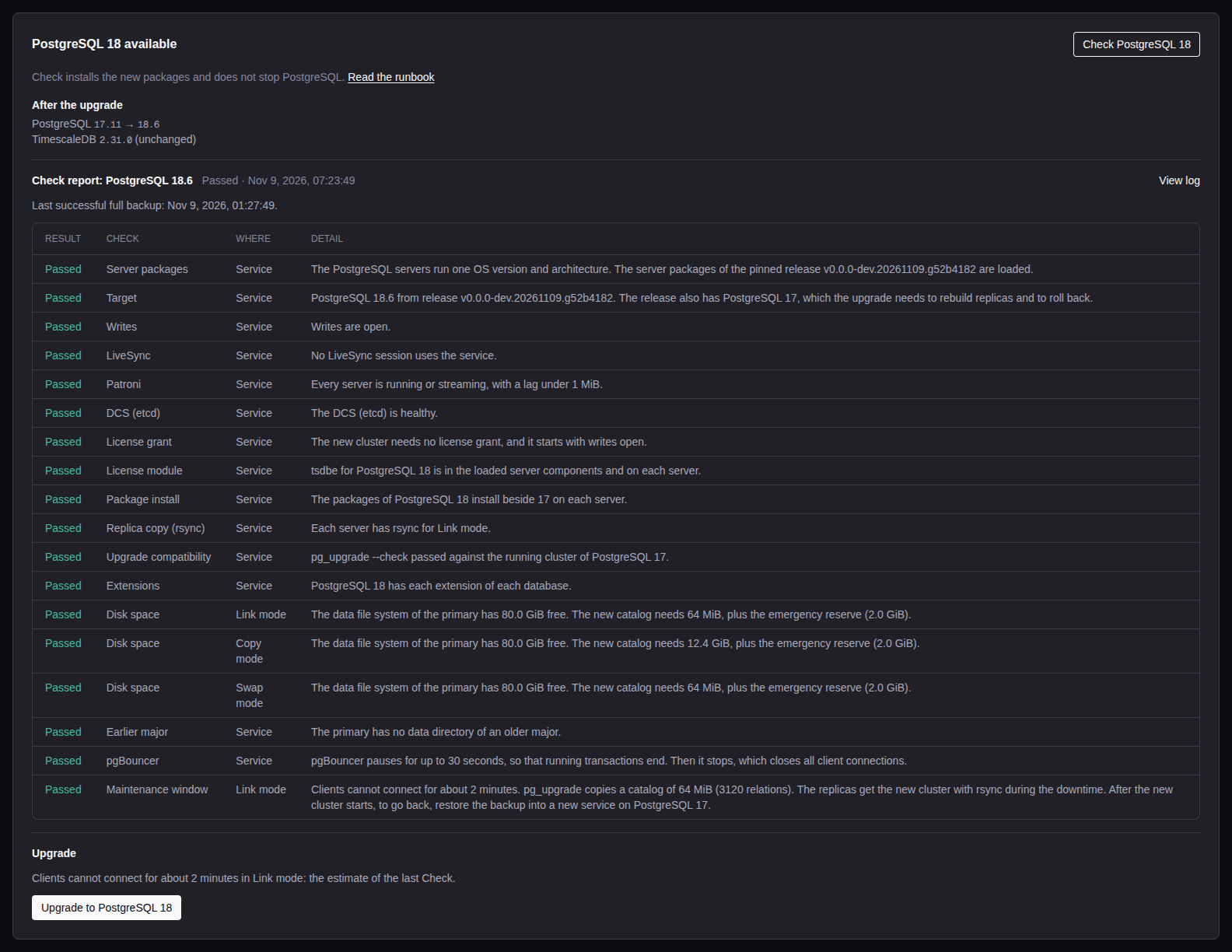
Check
Select Check PostgreSQL 18 (operator). Check does not stop PostgreSQL.
The report shows one row for each check: Blocked first, then Warning, then Passed. Where names the server, the database or the mode.
- A blocked row for all modes turns off Upgrade. A blocked row for one mode turns off only that mode.
- When the backup gate refuses, select Back up now (operator). A full backup runs, then Check runs again. With no backups, configure them on the Backups tab first.
- When the console cannot reach the licensing service, Check warns. Upgrade then waits until the new cluster is licensed (see Air-gapped consoles).
Correct each blocked row, then run Check again. If you cannot correct a blocker, contact Tiger Data support.
The maintenance window
The report estimates the window for each mode. During the window:
- Running transactions get at most 30 seconds to end. Then pgBouncer closes the client connections.
- PostgreSQL stops on every server. Stop on the Operations tab is off.
- The window ends when clients can connect to the new major on the primary.
After the window, the console refreshes the planner statistics and starts a full backup. In Copy and Swap mode, it then rebuilds each replica. In Link mode, a replica that does not stream is rebuilt too.
Upgrade
Upgrade to PostgreSQL 18 (admin) runs the plan of the last Check. It is off until the last Check passed less than one hour ago, and nothing changed after it (versions, pin, loaded server packages).
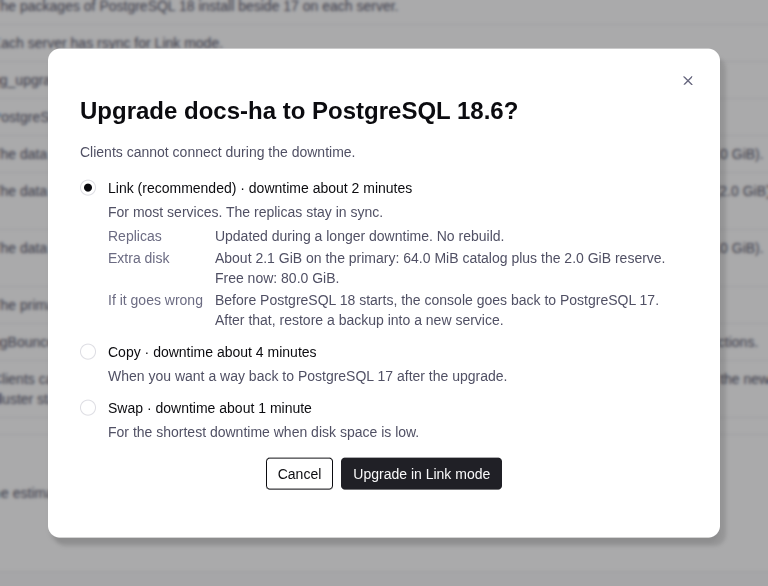
Open the Upgrade dialog
On the Updates tab, select Upgrade to PostgreSQL 18.
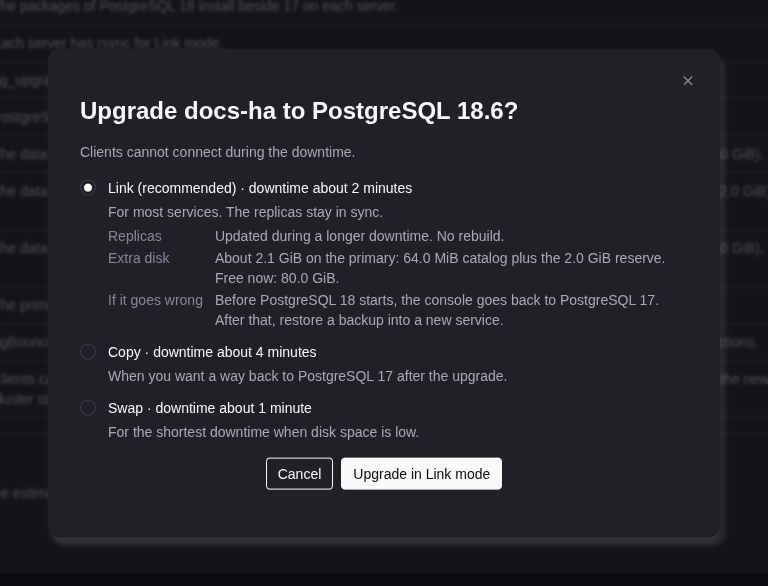
Select a mode
Select a mode. Each mode shows its downtime estimate. The selected mode shows Replicas, Extra disk and If it goes wrong. A mode that failed the last Check is off.
Start the upgrade
Select Upgrade in Link mode (or the mode you selected).
Upgrade checks the backup gate again. Before the window, with no downtime, it makes the new cluster and licenses it. The workflow band shows the progress. View logs opens the log on the Operations tab.
When the upgrade ends, the section shows the new major. Then check:
- the operation log;
- the full backup of the new major (no Checksum errors mark);
- the replicas (streaming).
When a replica rebuild cannot start, start it with
POST /api/v1/database-services/{id}/servers/{server_id}/rebuild-replica
(admin). If a step fails, see When an upgrade fails.
Air-gapped consoles
When the console cannot reach the licensing service, and the old cluster is licensed, Upgrade makes the new cluster and waits. The service keeps running the old major.


Export a request
In the section, select Export request.
Send it to Tiger Data
Email the file to support@tigerdata.com. Tiger Data sends back a bundle that licenses the new cluster.
Import the bundle
Select Import bundle (admin) and select the file. This is the same exchange as in Air-gapped installs.
The console checks the license and the backup gate, then the window starts. It stops when the primary changed during the wait. If the new cluster is not licensed in 24 hours, the upgrade stops, and the service keeps the old major.
When an upgrade fails
- Before the new major starts (Swap: before the files move), the console goes back to the old major on every server. A full backup runs. Correct the cause from the log, then run Check and Upgrade again.
- Backups after the rollback: when this section shows, WAL archiving fails and ArchiveCommandFailing fires. Correct the cause, then select Set up backups again (admin). A full backup follows.
- The console restarted during the window. After the start of the new major, the console completes the upgrade and rebuilds each replica that does not stream. Before it, the section offers Roll back to PostgreSQL 17 (admin): the old major starts again from its own data. No write is lost.
pgauditis missing after a failure: the console creates it again later. The pgaudit row of the next Check names the databases.- Swap, after the files move: the old major cannot start again. When
pg_upgradecompleted, the console continues once by itself. If that fails, the service is down. Correct the cause from the log, then select Continue the upgrade to PostgreSQL 18 (admin). Whenpg_upgradestopped during the move, the upgrade cannot continue. Restore the backup from before the upgrade into a new service. - After the new major starts, there is no automatic way back. The log names the failed step. After a Copy upgrade, see Roll back a Copy upgrade. After a Link or Swap upgrade, restore the backup from before the upgrade into a new service on the old major (see Restore).
Backups of the old major stay until retention removes them. In the restore point picker, a time before the upgrade restores only into a new service on the old major.
Roll back a Copy upgrade
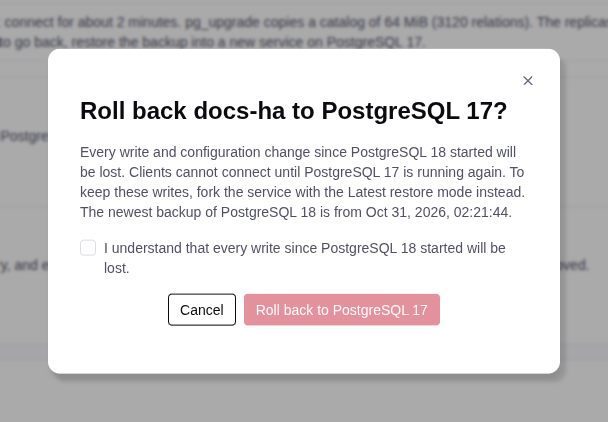
After a Copy upgrade, Roll back to PostgreSQL 17 (admin) takes the service back to the old major in place. It is available until you remove the files of the old major.
Open the rollback dialog
Select Roll back to PostgreSQL 17. The dialog shows the time of the newest backup of the new major.
Confirm the data loss
Select the box I understand that every write since PostgreSQL 18 started will be lost.
Start the rollback
Select Roll back to PostgreSQL 17.
The rollback is off, with the reason, when:
- the upgrade ran in Link or Swap mode;
- you removed the files of the old major;
- the server that was the primary during the upgrade left the service;
- the pin of the service moved to a newer release;
- another action is running on the service.
During the rollback, clients cannot connect. The old major starts on the server that was the primary in the window, with its data from the start of the window. The data directory of the new major is removed; its packages stay. Until the old backup setup is back, WAL archiving fails. If that step fails, the section shows Backups after the rollback: correct the cause, then select Set up backups again.
Then a full backup runs, and the console rebuilds each replica. You can run Check and Upgrade again later.
On an air-gapped console with a licensed database, the rollback first waits until the old cluster is licensed again. Export a request and import the bundle as in Air-gapped consoles. The new major keeps running until then. If it is not licensed in 24 hours, the rollback ends.
When a rollback fails, correct the cause from the log. Then select Roll back to PostgreSQL 17 again.
Remove the files of the old major
After the upgrade, the data directory, configuration and packages of the old major stay on the servers. The next major upgrade refuses while they exist.
Wait for a full backup
Wait for the first full backup of the new major. To start one, select Back up now.
Check the backup
In Backup history, check that this backup has no Checksum errors mark. If it failed or has the mark, do not remove the files. Correct the cause and take another full backup.
Remove the files
Select Remove the files of PostgreSQL 17 (admin), then Remove.
The service keeps running. The removal frees:
- Link: only the old catalog and WAL (the data files are shared).
- Copy: the full old data directory on the primary. The rollback is no longer possible.
- Swap: the files that
pg_upgradeleft in the old data directory.