Licensing
Add a license or start a trial, see what a license covers and limits, keep your services licensed, and bind a license on an air-gapped console.
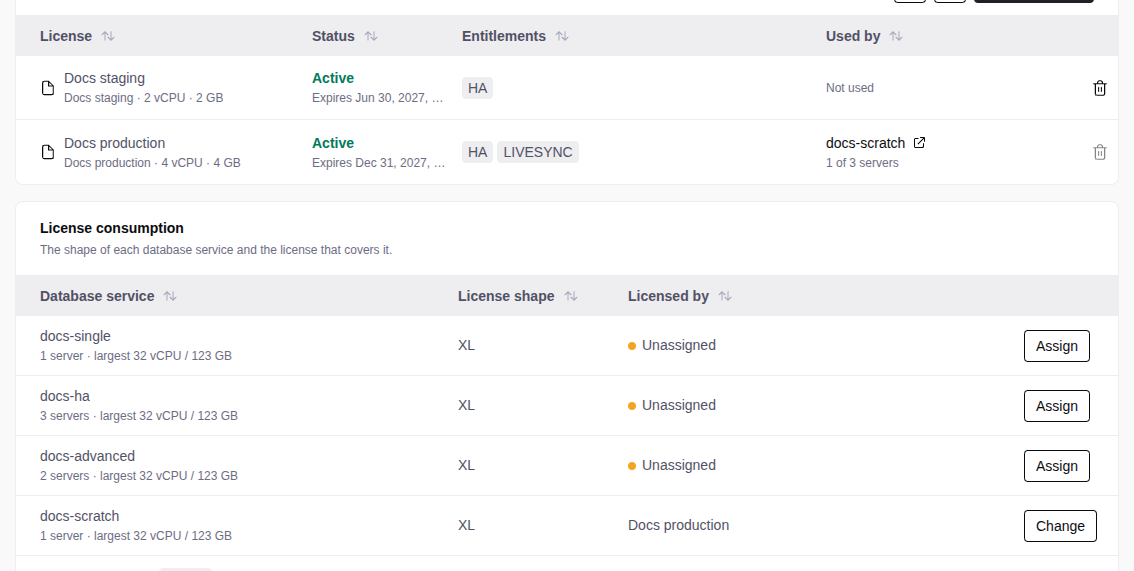
The console starts with no license. Manage licenses in Administration → License. To add or delete a license, change the license of a service, or start or reset a trial, you need the admin role.
How licenses work
- One license for each database service, on one console. You cannot use the same key on a second console.
- A size for each server. The tier sets the vCPUs and memory that TimescaleDB can use on each server:
| Tier | vCPUs per server | Memory per server |
|---|---|---|
| Small | 4 | 16 GB |
| Medium | 8 | 32 GB |
| Large | 16 | 64 GB |
| XL | 32 | 128 GB |
| Unlimited | No limit | No limit |
A vCPU is one logical CPU, as nproc counts it. TimescaleDB for Ignition has
one size: Small.
- 3 servers for each service: a primary and 2 replicas. More than one server needs the HA entitlement.
- Infrastructure needs no license. Enrolled servers, backup servers and DCS clusters do not use a license.
Installing a license
On the License page, select Add license. In the Add or activate a license dialog, do one of these:
- Paste a license key (recommended), then select Add / activate. The console activates the license online.
- Paste the license file contents (
-----BEGIN LICENSE FILE-----), then select Add / activate. This needs no network. - Select Choose license files and select one or more
.licfiles.
The licenses that are already installed stay.
Start a trial
A trial covers all services and servers for 7 days. It needs network access. For an air-gapped install, email support@tigerdata.com for a license file.
Request a code
Select Start trial. Enter your first name, last name, work email and company. Select Send code.
Enter the code
Enter the 6-digit code from the email. Select Start trial. The code is valid for 10 minutes. To get a new code, select Resend.
- Each install can start one trial, whatever the email.
- Personal, disposable and test email domains (for example
gmail.comorexample.com) cannot start a trial. - For each service, you pick a size: the tier that you would buy. The deploy limits TimescaleDB to that size. Pick Unlimited for no limit. To change the size later, change the license.
- When a trial expires, its status changes to Reset trial. Select it to get 7 more days. You can reset a trial up to 7 times.
- Do not delete an expired trial license. You cannot reset a trial that is not in the console, and the install cannot start a new trial.
The License page
The Status column of the license table:
| Status | Meaning |
|---|---|
| Active | The license covers deployments. |
| Expired | The term ended, or the signed file expired. |
| Revoked | Tiger Data withdrew the license. Contact Tiger Data. |
| Unbound | The license is genuine but not bound to this console (air-gapped only). |
| Unknown | The console cannot evaluate licensing. Contact support. |
| Invalid | The file is not a genuine license file. |
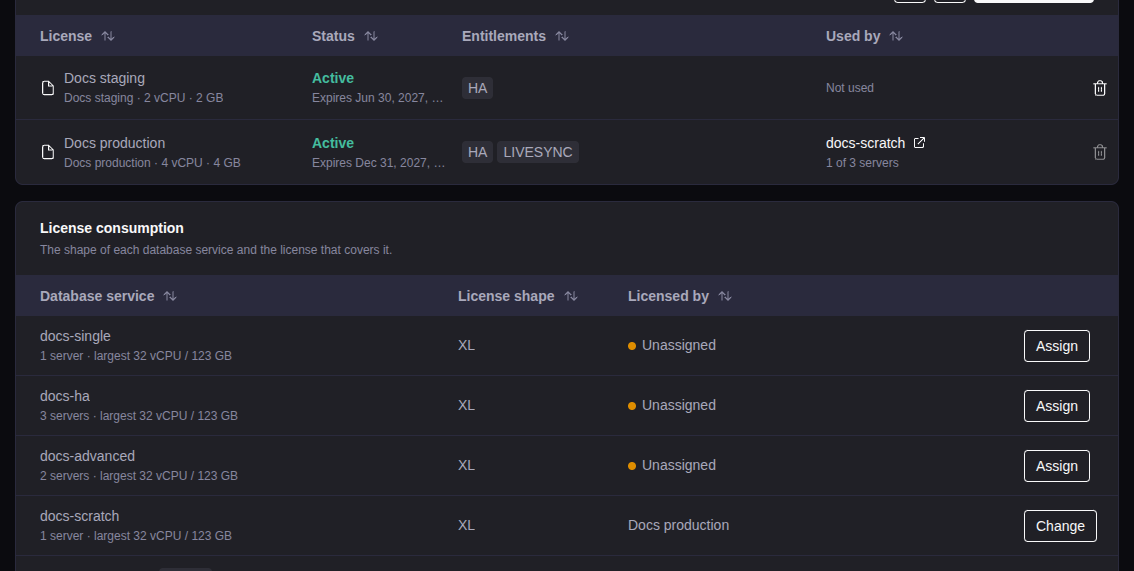
License consumption, below the licenses, shows for each service the License shape (the license it needs after the trial) and Licensed by. To move a service to a different license, select Assign or Change in its row.
What needs a license
These actions need an active license that covers the servers of the service:
- Create a database service.
- Deploy or redeploy a service.
- Fork or recover into a new service. The new service needs its own license for the servers that you pick.
- Create or start a LiveSync session. The destination must
be one of these:
- A database service with an active license that has the LIVESYNC entitlement. TimescaleDB for Ignition licenses do not have it.
- A Tiger Cloud service (
*.tsdb.cloud.timescale.com). Do not putsslrootcertin the connection string.
These actions work with an expired license: backups, in-place restore, failover, switchover, restarts, stopping or removing LiveSync, removing a service, enrolling servers, and applying the monitoring configuration.
Staying licensed
For a license that you added with a key or a trial, the console:
- checks the license online once a day. It gets term changes, suspensions and reinstatements.
- renews the signed file before it expires.
The refresh button on the License page runs the check now.
Both need outbound HTTPS from the console host to api.keygen.sh. If the
console cannot connect, the license works for 72 hours more, then stops.
A license that you added as a file is not checked or renewed. Without the OFFLINE entitlement, it stops when the file expires.
When a license expires
The console blocks new deployments and forks. Running services continue to run. Hover over the Status of the license to see the next step:
- Trial: select Reset trial. After the last reset, ask Tiger Data for a license.
- License added with a key: ask Tiger Data for an extension, then select the refresh button.
- License added as a file: ask Tiger Data for a new file, then upload it.
- Any license: move its services to a different license. For each service, change the license.
To delete a license, move its services first.
When writes stop
When a trial or a paid license expires, or a license is suspended, each service that uses it becomes read-only. While writes are disabled, the service overview shows a banner.
Queries continue to work. PostgreSQL refuses these with SQLSTATE 25006 and
the expiry date:
- Inserts, updates, deletes and schema changes.
- Functions that change data, for example
drop_chunksand large object functions. - Row locks (
SELECT ... FOR UPDATE). - Changes from a logical replication subscription. It catches up when writes start again.
Backups, streaming replicas and monitoring continue.
To start writes again, renew the license, or move the service to another license (see Changing the license). Writes start within a minute.
A fork or recovery of a locked service onto an active license is writable. An in-place restore keeps the lock.
After you renew
The console reads the expiry from its signed file. It gets a new file within a day. To see the change now:
- Same license, new term: select the refresh button, or paste the key again.
- A different license: add it, then change the license.
Servers bigger than the license
You can deploy on a server that is bigger than the tier. The deploy then limits TimescaleDB on that server to the tier:
- vCPU: TimescaleDB runs only on the first vCPUs, up to the tier.
- Memory: TimescaleDB can use memory up to the tier, page cache included, with no swap. The server can reserve at most 80 % of the tier memory, so a query that needs more usually fails with an out-of-memory error. If the memory still runs out, the kernel stops one database process. PostgreSQL recovers, and open connections drop.
- Tuning: PostgreSQL is tuned for the tier size, not the server size.
The limits need cgroup v2 and systemd 244 or later. All supported operating systems have them.
When a limit applies, the service overview shows capped next to the license, and the topology card of the server shows what TimescaleDB can use.
On a server that is smaller than the size, TimescaleDB uses only what the server has. A smaller license can be sufficient.
Changing the license of a deployed service
Open the service and select ⋯ → Change license, or select Change in the License consumption table. The console applies the new limits with no redeploy:
- No interruption: a vCPU change, a higher memory limit, and settings that need only a reload.
- Restart needed: a lower memory limit, and a new
shared_buffers.
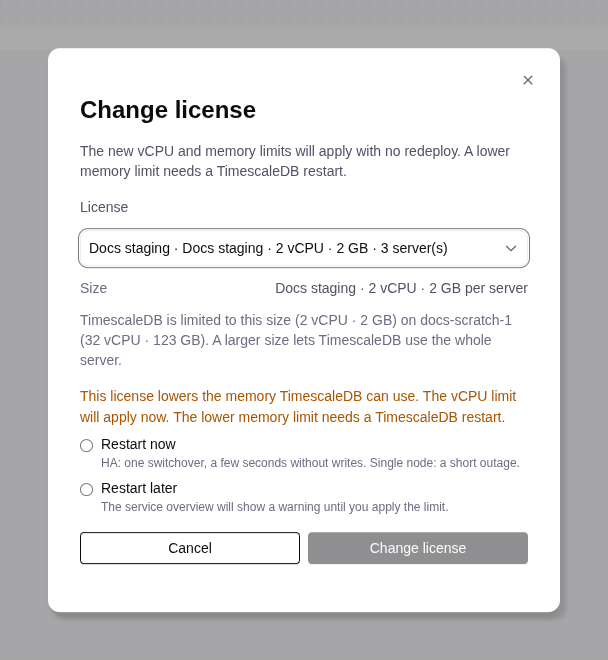
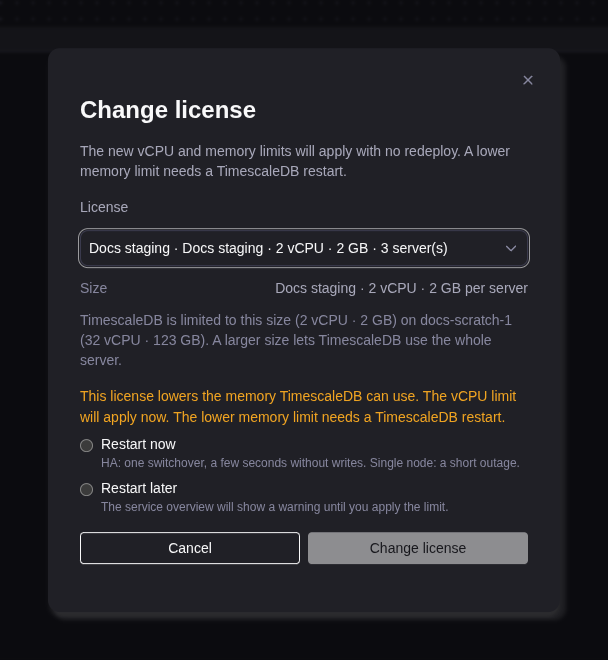
When a restart is needed, select Restart now or Restart later. Until TimescaleDB restarts, the service overview shows a banner:
- License limit is not applied. (warning): TimescaleDB can use more memory than the license allows.
- Restart pending. (information): only new settings wait.
Apply now on the banner restarts TimescaleDB:
- HA: the replicas restart one at a time, then a switchover. Writes stop for a few seconds.
- Single node: a short outage.
The banner also shows after you resize a server. The Operations list shows these jobs as Apply license caps.
To tune again for the license size, open Database service admin and select Retune. It restarts TimescaleDB as Apply now does.
Air-gapped installs
Email support@tigerdata.com for an air-gapped license file, with the OFFLINE entitlement. Add it on the License page. Tiger Data sends a new file at renewal.
For the steps below, the console shows an id and two commands. Run the commands on a computer with internet access and your license key, then paste the result into the console. Each result is valid for the license term (one year for a license with no end date).
Binding an air-gapped license to this console
An unbound license has the status Unbound and covers no deployments.
Open the dialog
On the License page, select the Unbound status. The dialog shows This console’s install id and the commands.
Paste the result
Run the commands, then paste the file. Select Bind license.
Forking or recovering a locked service
A copy of a service with an expired grant starts read-only. An air-gapped console cannot write a new grant, so the restore wizard asks for one:
Send the ids
Pick the backup or the time. Send the fingerprint and the license id that the wizard shows to Tiger Data. If you change the pick, the fingerprint can change.
Paste the grant
Paste the grant into Bootstrap grant, then deploy. The console refuses a grant for a different database or license.
Writing a license grant into a database
Do this only if software that connects to the database needs the license grant.
Open the dialog
Open the service and select ⋯ → License grant. The dialog shows This database’s fingerprint and the commands.
Paste the result
Run the commands, then paste the file. Select Write grant.