Installation
Install the console on a Linux host with the installer: requirements, the installer menu, a bundle install and the server packages.
The installer timescale-enterprise.sh installs, upgrades and
uninstalls the console on one Linux host with Docker. It also runs a
demo and makes an offline/airgapped package.
Requirements
- A Linux host, x86-64 (
amd64) or ARM64 (arm64). - Docker Engine with Docker Compose v2, as the
docker composeplugin or the standalonedocker-compose.docker-composev1 does not work. The installer can install Docker (see Docker). - At least 3 GB free in the Docker data directory (
/var/lib/dockerby default). - A synchronised clock (chrony or ntpd). The servers take their time from the console host.
- Free host ports: 443 and 80 (HTTPS) or 8080 (plain HTTP), and 8090/tcp, 41641/udp and 3478/udp for the mesh.
- Outbound HTTPS to Docker Hub (
registry-1.docker.io,auth.docker.ioand its storage host). Without internet access, use an airgapped install. - Outbound HTTPS to
api.keygen.shto activate a license online or to start a trial, and totsdbe.tigerdata.comto start or reset a trial. See Licensing.
The database servers need no internet access.
Docker
If Docker Engine or Docker Compose v2 is missing, or the Docker daemon is stopped, the
installer asks to fix it ([Y/n]). It needs root or sudo, and access to
download.docker.com.
- It installs Docker on Debian 12 and 13, Ubuntu 22.04, 24.04 and 26.04, and RHEL, AlmaLinux, Rocky Linux and CentOS Stream 9 and 10. On other systems, use Docker’s install guide.
- It stops if a conflicting package is installed (for example
docker.ioorpodman-docker), and names it. - It does not add users to the
dockergroup. Run the installer as root, or runsudo usermod -aG docker $USER, log in again, and run the installer again. - Without a terminal, it fixes Docker only with
--install-docker.
The installer menu
On the console host, run:
curl -fsSL https://enterprise.tigerdata.com/install/timescale-enterprise.sh | shThis runs the installer of the latest release. The installer of an earlier release is at
https://enterprise.tigerdata.com/install/<tag>/timescale-enterprise.sh. Optional: to check the installer first, see
Check the installer before you run it.
The installer shows a menu. The top shows the install on this host, its state and its URL. Type the number of a choice, or press Enter for the default.
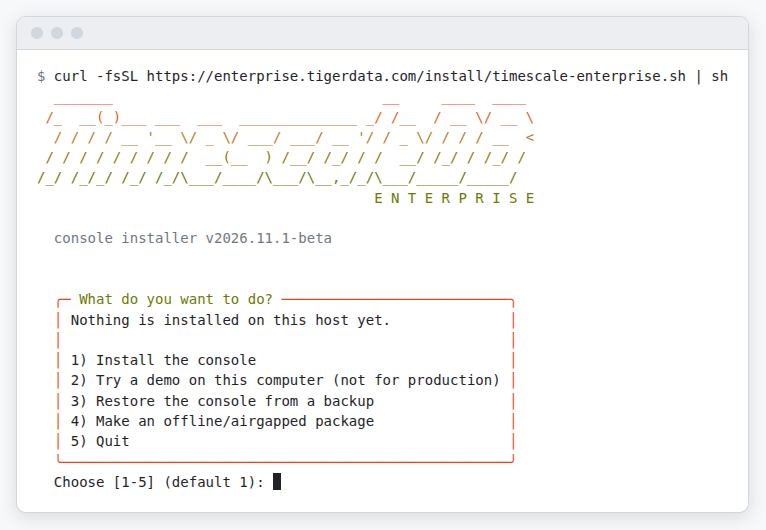
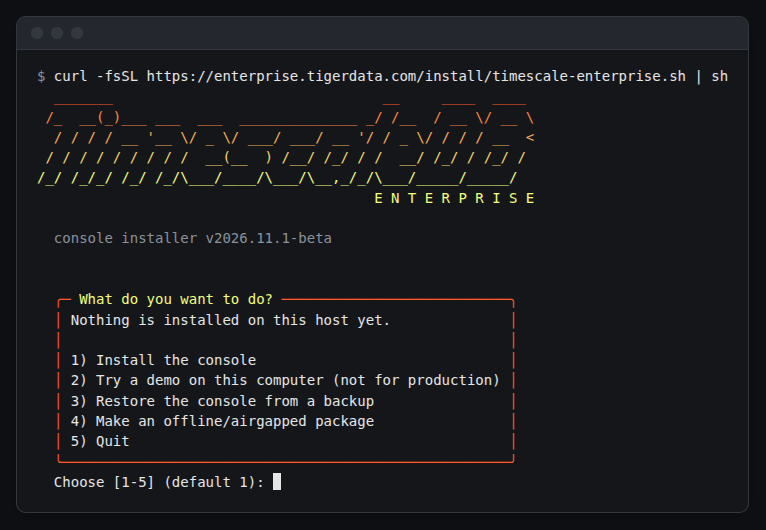
| Choice | Shows when | What it does |
|---|---|---|
| Install the console (default) | Nothing is installed | See Install |
| Try a demo on this computer (not for production) | Nothing is installed | See Demo mode |
| Upgrade or repair (default) | The console is on the installer’s release, or is a bundle install | Upgrades the console to this release, or repairs it. See Upgrade |
Upgrade to <new> (default) |
An older console release is installed | Upgrades the console to the installer’s release. See Upgrade |
Start or repair (keep <current>) |
An older console release is installed | Starts or repairs the console on its current release. The installer does not change the Compose files and does not download an image |
| Change the listener | A console is installed | Asks the listener questions, TSE_PUBLIC_URL and TSE_BACKUP_DIR again |
| Restore the console from a backup | Nothing or a console is installed | Asks for a .tse file and its recovery key. See Restore the console |
| Uninstall | A console or a demo is installed | See Uninstall |
| Make an offline/airgapped package | Always | See Airgapped install |
| Quit | Always | Stops and changes nothing |
When a demo is installed, the menu shows the demo choices (see Demo mode). On macOS, a console install and a restore are not available, and the default is the demo. Without a terminal, use the options.
Install
Select Install the console
Run the installer (see The installer menu). Press Enter to select Install the console.
Answer the questions
-
Login token (TSE_AUTH_TOKEN): press Enter to generate a token. The installer shows it one time.
-
Listener:
1: plain HTTP on port 8080. Use it only for a test. Several console tabs on plain HTTP can stop page loads.2(default): self-signed HTTPS on port 443, with a redirect from port 80.3: your own certificate on port 443. Give the paths of the certificate and the key (default./certs/cert.pemand./certs/key.pem).
See TLS modes.
-
Console address (
2and3): the address at which users reach the console. The installer setsTSE_PUBLIC_URLtohttps://<address>. -
Server-facing console URL (TSE_PUBLIC_URL) (
1only): the URL at which the database and backup servers reach the console. -
Console backup directory (TSE_BACKUP_DIR): the directory on this host for the local console backups. Press Enter for
<install dir>/backups.
Use a DNS name, not an IP address. Each server keeps the URL that it enrolled with. If the console IP address changes, servers enrolled with an IP address lose the mesh. See Change IP addresses.
Wait for the console
The installer starts the console and waits up to 5 minutes. At the end, it shows
Console ready with the console URL. It writes the output of each command to
install.log in the install directory.
| Problem | What the installer does | Fix |
|---|---|---|
| A host port is in use | Stops, and names the container or the command that finds the process | Free the port and run the installer again |
| A step fails | Shows the last 20 lines of install.log |
Fix the cause and run the installer again |
| No answer in 5 minutes | Stops | Read docker compose -f docker-compose.yml logs app in the install directory |
Log in
Open the console URL. On the Admin token tab, log in with the token
(TSE_AUTH_TOKEN in .env in the install directory). Accept the Beta Program Terms.
Then create your own admin user (see Users and roles).
Add a license
You cannot deploy a database service without a license. In Administration → License, select Start trial or Add license. See Licensing.
Load server packages
A new console has no server packages. See Load server packages.
Set up console backups
In Administration → Console backups, set up the recovery key, an S3 target and a schedule. Without a console backup, you cannot manage your services after the loss of the console host. See Console backups.
Install directory
The default install directory is /opt/tse. A user other than root needs sudo to make it.
For another directory, add --dir <path> after sh -s -- in the install command. The
directory must be new, empty, or a console install. Else the installer stops and writes
nothing.
Install from a bundle
A bundle holds the installer, the Compose files and the app image. Download the bundle for
the architecture of the console host (uname -m: x86_64 is amd64, aarch64 is arm64),
extract it into a new directory, and run its installer:
oras pull docker.io/timescale/enterprise-packs:<tag>-bundle-<arch>
mkdir timescale-enterprise
tar -xzf timescale-enterprise-<tag>-console-<arch>.tar.gz -C timescale-enterprise
cd timescale-enterprise
./timescale-enterprise.sh
The bundle directory is the install directory. Keep it: upgrades run there. If the image pull fails, the installer loads the image of the bundle.
Load server packages
A deploy installs the packages of a server from the server packages of the console. Each file is for one OS version and architecture. A new console has none.
| Way | Where | Needs |
|---|---|---|
| Download | Administration → Server packages: Download on a row, or Download the needed server packages | Operator or admin role. Outbound HTTPS from the console host to Docker Hub |
| Upload | Administration → Server packages → Upload server packages: choose timescale-enterprise-<tag>-server-packages-*.tar.zst files, or the .tar file of --make-bundle --packs-only |
Admin role. At most 8 GB for each file. Free space on the console data volume: the file size (two times for a .tar) plus 1 GB |
| Installer | --pack on the console host (see below) |
Shell on the console host. The console must run |
| Airgapped package | See Airgapped install | No internet access on the console host |
To load files with the installer, run it in the install directory:
./timescale-enterprise.sh --pack /path/to/timescale-enterprise-<tag>-server-packages-ubuntu-26.04-amd64.tar.zstA path can also be a directory or a .tar file that holds the files. Add --dir if the
install is not in /opt/tse. When SHA256SUMS is next to the files, the installer checks
its signature, SHA256SUMS.sig, with ssh-keygen (OpenSSH 8.1 or later), then the sha256 of
each file. Put SHA256SUMS.sig of the release next to SHA256SUMS.
The console refuses server packages of a newer release than the console, and files that fail the signature check. It uses new server packages at once, with no restart.