Demo mode
Try the console on one computer, with demo servers as Docker containers: start, stop and reset a demo, connect, and convert it to production.
A demo runs the console and its database servers as Docker containers on one computer.
Requirements
- Linux or macOS, with Docker and the Docker Compose v2 plugin. On a Mac, start OrbStack or Docker Desktop first.
- At least 4 CPUs and 8 GB of Docker memory. See Demo memory.
- Internet access from Docker containers for the first start.
- Free port
8080. - A free network range for the demo servers. The installer selects the first range that no
other Docker network and no route of this computer (for example a LAN or a VPN) uses, and
writes it to
~/tse/.envasTSE_DEMO_SUBNET. Without that line, the range is172.29.0.0/24. To see the range, rundocker network inspect tse-demo-servers. The virtual IP of an HA service must be in the upper half of the range, for example172.29.0.200in172.29.0.0/24.
Start a demo
Run:
curl -fsSL https://enterprise.tigerdata.com/install/timescale-enterprise.sh | sh -s -- --demoOr run the installer without options and select Try a demo on this computer (not for
production) (the default on a Mac). Type y to accept the warning. The first start takes
about a minute more.
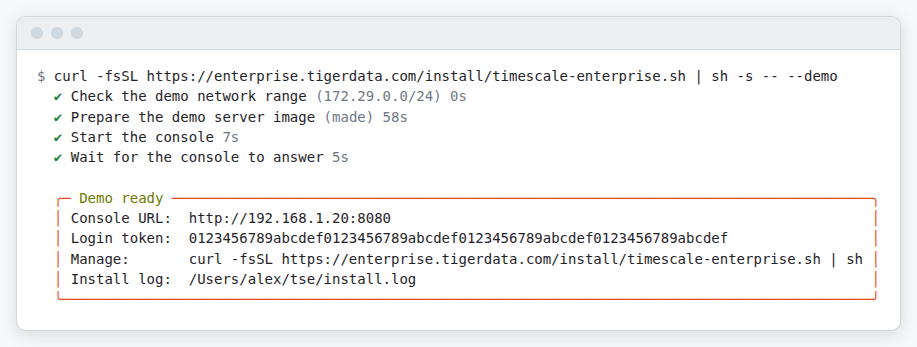
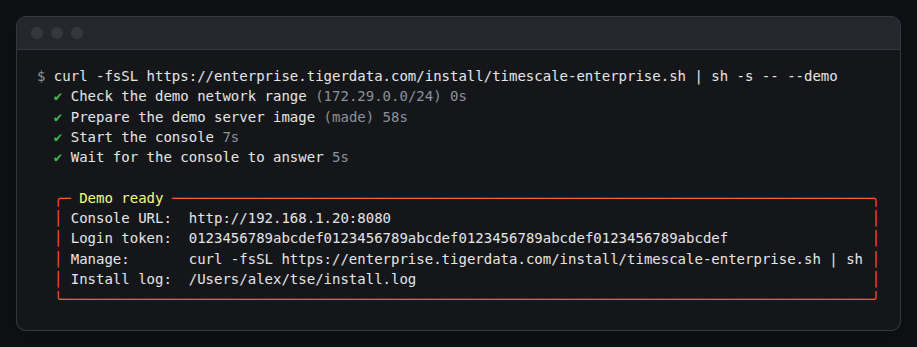
Open the Console URL of the box and log in with the token. The URL has the IP address of
the computer on its network, so it works also from Docker containers and from other computers.
Without a network, it is http://localhost:8080. http://localhost:8080 always works in a
browser on the computer that runs the demo. To see the URL and the token again, run the
Manage command. The demo files are in ~/tse.
Licensing applies as in production: start a trial or add a license.
Add demo servers
A demo server takes the place of a real server. The console starts it for you as a container and enrolls it, as a real server enrolls with the enroll command. You do not run a command.
Open Register new server
Open Infrastructure → Servers, and select Register new server.
Name the server
Optional: enter a name.
Add the server
Select Add server.
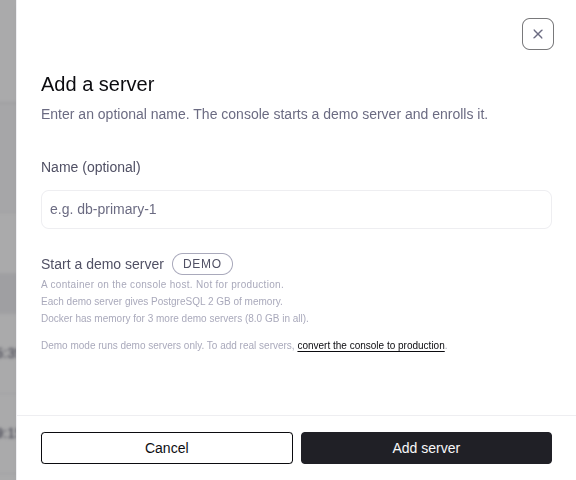
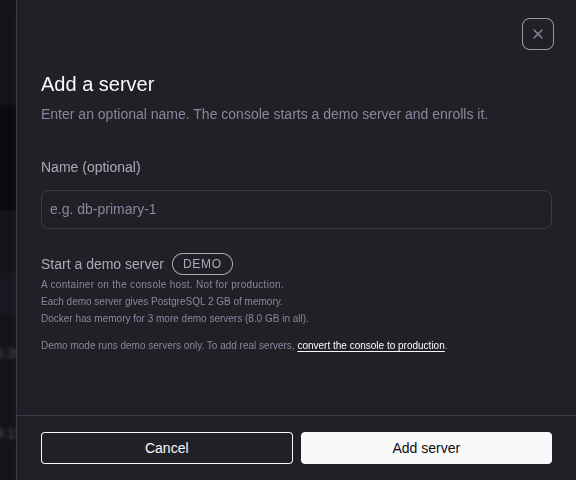
A demo console accepts demo servers only. To add real servers, convert the demo to production.
Demo memory
The console needs about 2 GiB of Docker memory, and each demo server about 1.25 GiB. 8 GB holds the console and 4 demo servers. Stopped demo servers count. When there is no room, the console does not start a demo server.
To change the limit, open Settings → Resources in Docker Desktop, or Settings → System in OrbStack.
Connect to a database service
Open the database service and select Connection info. In a demo, the recommended endpoint goes through the computer that runs the demo, on a port from 15432 to 15531. Its host is the host of the console URL in your browser. A client that reaches the console at an address reaches the databases at the same address.
The API gives the endpoints on the Docker network of the demo servers too. Only a client on that network can use them.
Connect Ignition
Ignition asks for the console URL and the login token. Then it shows the database services
and selects the recommended endpoint of each. Give Ignition the Console URL of the
Demo ready box. It works when Ignition runs on the computer that runs the demo, in a
Docker container, or on another computer. Do not use localhost for Ignition in a container:
there, localhost is the container itself.
The IP address of the computer changes when it goes to a different network. Then run the Manage command to see the new URL, and change the console URL in Ignition.
Stop, start, reset and upgrade
Run the Manage command and select the action in the menu, or add the option:
curl -fsSL https://enterprise.tigerdata.com/install/timescale-enterprise.sh | sh -s -- --demo stop.
| Option | Result |
|---|---|
--demo stop |
Stops the demo. The data stays. |
--demo |
Starts a stopped demo, or upgrades it to the newest release. |
--demo reset |
Deletes all demo servers and data, and makes a new demo. The login token stays. |
A demo that runs starts again after a restart of the computer or of Docker.
Remove a demo
Select Uninstall in the menu, or use the option --uninstall. Type uninstall to
confirm. On Linux, answer r first.
Convert a demo to production
On Linux only: select Convert to a production console in the menu, or run --uninstall
and answer c.
- The console keeps its users, settings, alerts and license, and the days left of a trial.
- The installer deletes all demo servers, with their database services and backups.
- The console moves to
/opt/tse. This needs root orsudo. - The installer asks the questions of a production install.
- If the convert stops, run the installer again.
The installer does not convert if the host already has a production console.