Demo mode
Try the console on one computer, with demo servers as Docker containers: start, stop and reset a demo, connect, and convert it to production.
A demo runs the console and its database servers as Docker containers on one computer.
Requirements
- Linux or macOS, with Docker and the Docker Compose v2 plugin. On a Mac, start OrbStack or Docker Desktop first.
- At least 4 CPUs and 8 GB of Docker memory. See Demo memory.
- Internet access from Docker containers for the first start.
- Free port
8080, and no other Docker network on172.29.0.0/24.
Start a demo
Run:
curl -fsSL https://enterprise.tigerdata.com/install/timescale-enterprise.sh | sh -s -- --demoOr run the installer without options and select Try a demo on this computer (not for
production) (the default on a Mac). Type y to accept the warning. The first start takes
about a minute more.
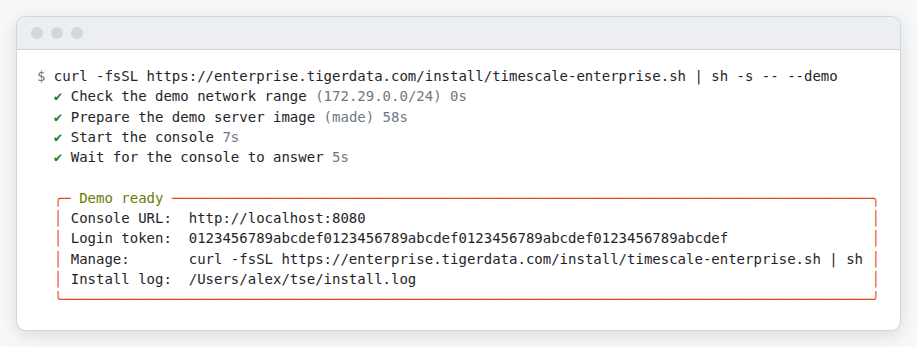
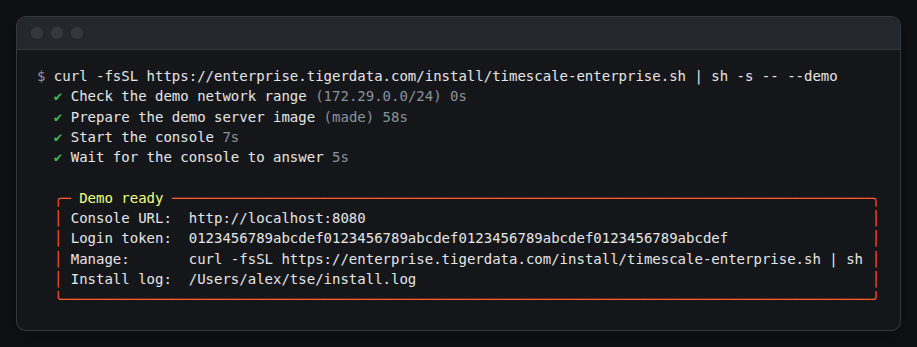
Open http://localhost:8080 and log in with the token. To see the token again, run the
Manage command. The demo files are in ~/tse.
Licensing applies as in production: start a trial or add a license.
Add demo servers
A demo server takes the place of a real server. The console starts it for you as a container and enrolls it, as a real server enrolls with the enroll command. You do not run a command.
Open Register new server
Open Infrastructure → Servers, and select Register new server.
Name the server
Optional: enter a name.
Add the server
Select Add server.
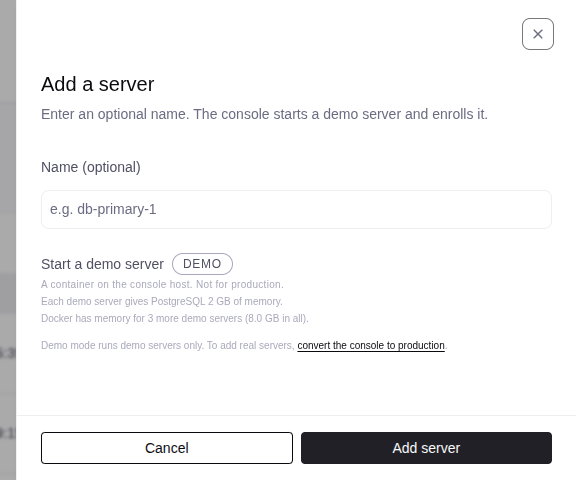
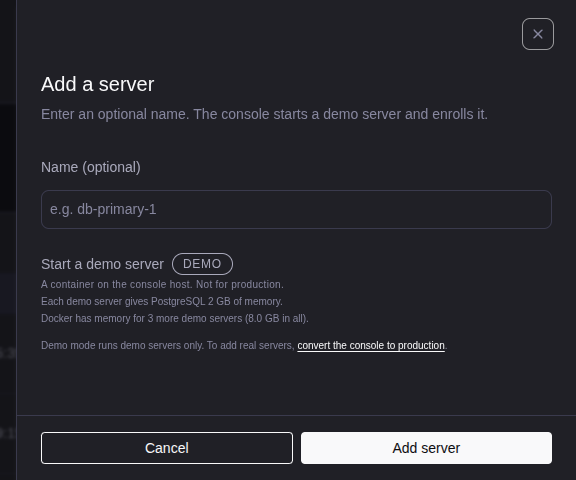
A demo console accepts demo servers only. To add real servers, convert the demo to production.
Demo memory
The console needs about 2 GiB of Docker memory, and each demo server about 1.25 GiB. 8 GB holds the console and 4 demo servers. Stopped demo servers count. When there is no room, the console does not start a demo server.
To change the limit, open Settings → Resources in Docker Desktop, or Settings → System in OrbStack.
Connect to a database service
Open the database service, select Connection info, and use the From this computer
(demo) connection string. It uses 127.0.0.1 and a port from 15432 to 15531.
Stop, start, reset and upgrade
Run the Manage command and select the action in the menu, or add the option:
curl -fsSL https://enterprise.tigerdata.com/install/timescale-enterprise.sh | sh -s -- --demo stop.
| Option | Result |
|---|---|
--demo stop |
Stops the demo. The data stays. |
--demo |
Starts a stopped demo, or upgrades it to the newest release. |
--demo reset |
Deletes all demo servers and data, and makes a new demo. The login token stays. |
A demo that runs starts again after a restart of the computer or of Docker.
Remove a demo
Select Uninstall in the menu, or use the option --uninstall. Type uninstall to
confirm. On Linux, answer r first.
Convert a demo to production
On Linux only: select Convert to a production console in the menu, or run --uninstall
and answer c.
- The console keeps its users, settings, alerts and license, and the days left of a trial.
- The installer deletes all demo servers, with their database services and backups.
- The console moves to
/opt/tse. This needs root orsudo. - The installer asks the questions of a production install.
- If the convert stops, run the installer again.
The installer does not convert if the host already has a production console.