Balloon files
Delete a reserved placeholder file from the console or over SSH to free space during a disk-full incident, then recreate the emergency reserve.
What they are
Each deploy creates two 1 GB files, tse-balloon-1 and tse-balloon-2, on
each PostgreSQL server. They are in the parent of the data directory
(<data_dir>/../). Delete one to free space when the disk is full.
On the service Overview, the disk bar of each PostgreSQL server shows the reserve at its right end. A hatched segment means that the reserve is complete. A hollow segment means that a file is missing.
The read-only setting that you apply before you free space does not stop all writes. Stop the applications that write first.
Root reserve
When the data directory is not on the root disk, the deploy also creates one
512 MB file, tse-balloon-root, on the root disk. It is in
/var/lib/tse-reserve, or in /opt/tse/reserve when /var/lib is on a
different disk.
Delete tse-balloon-root only when the disk that holds postgresql.conf
(/etc/postgresql/<version>/main) is full.
Free space from the console
Stop the applications
Stop the applications that write to the database.
Open Free emergency space
On the service Overview, open the menu of the full server in the topology and choose Free emergency space. If the item is disabled, the server has no balloon file. Use Free space by hand.
Select the files
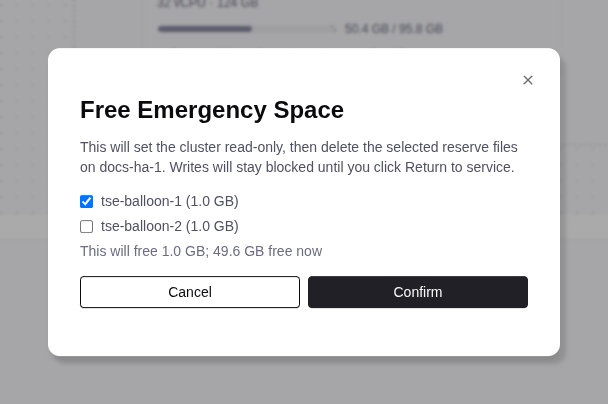
In the Free Emergency Space dialog, select the files to delete. Keep
tse-balloon-2 for a second attempt.
Confirm
Confirm. The console sets the whole cluster to read-only by default
(default_transaction_read_only=on). It waits up to 90 s for a member to
confirm, then it deletes the files.
Read the message
Read the message. It names the deleted files and the free space. No node confirmed read-only means that the setting applies when PostgreSQL starts. If the action fails, a file can already be deleted. Keep the applications stopped and contact support.
Remove what filled the disk
Remove what filled the disk (see step 3 of Free space). Wait until the server is healthy in the topology.
Check the read-only banner
Make sure that the Overview shows the Database service is read-only. banner. If it shows Read-only state is unknown. or no banner, contact support.


Select Return to service
Click Return to service. The console sets the parameter back to off.
It starts a run on the Operations tab that recreates the missing
files. If the message says Read-write not confirmed yet, keep the
applications stopped and contact support.
Test a write
Run one safe test write on the leader. If it succeeds, start the applications.
When the disk that holds postgresql.conf on the primary has less than 16 MB
free, the console first frees space on that disk of the primary:
- If it is the data disk, the console deletes one balloon file on the primary, not on the server that you chose. Run the action again if that server still needs space.
- If it is a different disk, the console deletes
tse-balloon-rooton the primary. - If that disk has no reserve file, the console shows an error that names the disk and changes nothing. Free space on that disk first.
Free space by hand
Use these steps when the console cannot reach the cluster. Replace
<data_dir> with the PostgreSQL data directory of the server.
Before you free space
Stop the applications
Stop the applications that write to the database.
Check the configuration disk
On the current primary, check the disk that holds postgresql.conf:
df -h /etc/postgresql/*/mainIf it is full, Patroni cannot apply the read-only setting. Free space on it first:
- If it is the data disk:
sudo rm <data_dir>/../tse-balloon-1. - If it is a different disk:
sudo rm /var/lib/tse-reserve/tse-balloon-root. If the file is in/opt/tse/reserve, use that path.
Set read-only by default
On any healthy server of the cluster, set new transactions to read-only by default:
sudo -u postgres patronictl -c /etc/patroni/patroni.yml edit-config --force \
  -s postgresql.parameters.default_transaction_read_only=on
The command also works when PostgreSQL is stopped. If it fails, continue to Free space. Try it again when there is free space and etcd has quorum. If it still fails, contact support.
Open transactions and sessions can still write. Keep the applications stopped.
Free space
Check the data disk
On the server with the full data disk, check the disk:
df -h <data_dir>Delete a balloon file
Delete tse-balloon-1, unless you deleted it on this server in the
previous section. If it is missing, delete tse-balloon-2. Record which
file you delete.
sudo rm <data_dir>/../tse-balloon-1Find what filled the disk
Find what filled the disk:
sudo du -xsh /* 2>/dev/null | sort -h | tailIf the data directory is on its own mount, also run
sudo du -xsh <data_dir>/../*. Remove only files that you know are safe to
delete, for example old logs. Do not delete files in the data directory,
WAL files, or files in the backup repository. If the database needs more
space, grow the storage.
Check the disk again
Run df -h <data_dir> again. If the disk is still full and you cannot
find safe files, contact support.
Return to service
Keep the applications stopped.
Check the members
On a server of the cluster, check the members:
sudo -u postgres patronictl -c /etc/patroni/patroni.yml list- Good: the
Leaderisrunningand eachReplicaisstreaming. - Bad: a member stays in
start failedorcrashed, or there is noLeader. Contact support.
Check the transaction setting
On the leader, check the transaction setting:
sudo -u postgres psql -Xc 'SHOW default_transaction_read_only;'The value must be on. If not, or if the command fails, contact support.
Allow writes again
On a server of the cluster, set the parameter back to off:
sudo -u postgres patronictl -c /etc/patroni/patroni.yml edit-config --force \
  -s postgresql.parameters.default_transaction_read_only=off
Test a write
Run one safe test write on the leader. If it succeeds, start the applications. If it fails, keep them stopped and contact support.
Recreate the balloon
When the console can reach the server again, choose Recreate emergency reserve in the server menu in the topology. The run shows on the Operations tab. While a file is missing, the service health shows a warning.
The run creates a missing file only when the disk has two times the file size free: 2 GB for a balloon file, 1 GB for the root file. Otherwise the run fails, and its log names the skipped files. Free space, then try again. If it still fails, contact support.