Airgapped install
Install and upgrade a console that has no internet access from one offline/airgapped package, and add a server OS to an air-gapped console later.
Use this procedure when the console host has no internet access. You make an offline/airgapped package on a second computer with internet access, then install from it.
Make the offline/airgapped package
Use a Linux or macOS computer with curl, tar, ssh-keygen (OpenSSH 8.1 or later; macOS
has it) and HTTPS access to registry-1.docker.io, auth.docker.io and the storage host of
Docker Hub. It needs no Docker and no Docker Hub account. The installer checks the signature
of SHA256SUMS of the release before it downloads the other files (see
The release signing key).
Run the installer
Download the installer of the release that you want to install, and run it:
curl -fsSLO https://enterprise.tigerdata.com/install/timescale-enterprise.sh
sh timescale-enterprise.sh
For an earlier release, download https://enterprise.tigerdata.com/install/<tag>/timescale-enterprise.sh.
Select the package option
Select Make an offline/airgapped package. Enter the directory for the package, or press Enter for the current directory.
Select the files
Select the files, then press Enter:
- Console: the architecture of the console host (
uname -mon the console host:x86_64isamd64,aarch64isarm64). The default is the architecture of this computer. - Server packages: each OS version and architecture of your servers. The public beta
supports
ubuntu-26.04onamd64andarm64.
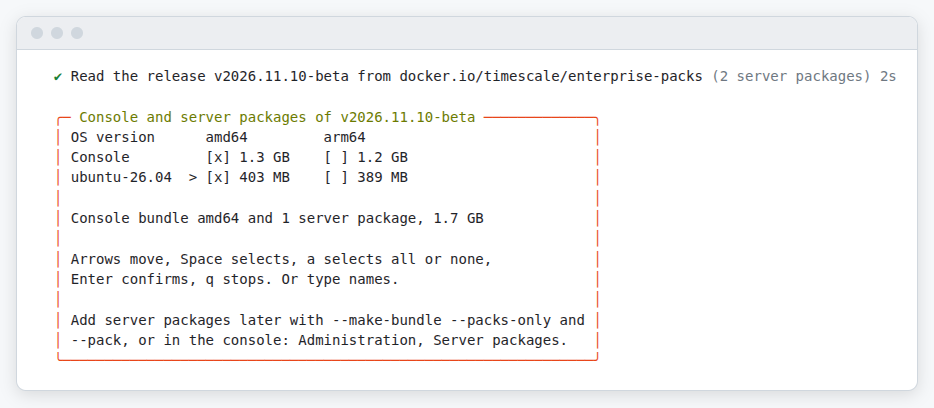
The installer writes timescale-enterprise-<tag>-offline.tar. It holds the console bundle,
the server packages that you selected, the installer, SHA256SUMS and its signatures
(SHA256SUMS.sig and SHA256SUMS.cosign.bundle). Check
the files before you copy the package to the console host. See
Verify an offline/airgapped package.
Without a terminal, run sh timescale-enterprise.sh --make-bundle with
--console-arch amd64 and --servers ubuntu-26.04 (or all, the default).
Install from the offline/airgapped package
The console host needs Docker Engine with the Docker Compose v2 plugin, and ssh-keygen of
OpenSSH 8.1 or later (on Ubuntu and Debian, the package openssh-client). Install them from
your own package mirror or media (see Requirements). The
installer checks the signature of SHA256SUMS in the package before it uses it. The installer
extracts the server packages into TMPDIR (default /tmp), so that directory needs free
space for them.
Copy the package to the console host, take the installer out of it, and run the install:
tar -xf timescale-enterprise-<tag>-offline.tar timescale-enterprise.sh
sh timescale-enterprise.sh --offline timescale-enterprise-<tag>-offline.tar
The installer extracts the console bundle into the install directory (--dir, else
/opt/tse) and asks the questions of a normal install. Then it starts the console and loads
the server packages. Continue with the steps of Install from
the step Log in. For a license without internet access, see
Air-gapped installs.
Add a server OS later
To deploy to an OS version or architecture that the console has no server packages for, make a file with only those server packages. Use the installer of the release of the console: the console refuses server packages of a newer release. On the computer with internet access, run:
sh timescale-enterprise.sh --make-bundle --packs-only --servers ubuntu-26.04-amd64This writes timescale-enterprise-<tag>-server-packages.tar. In
Administration → Server packages, select Upload server packages, and choose the
file. Or load it on the console host with ./timescale-enterprise.sh --pack <file> (see
Load server packages).
Upgrade
Make the new package
Make the offline/airgapped package of the new release, with the server packages for all your servers.
Run the install commands
On the console host, run the two commands of
Install from the offline/airgapped package
with the new package. Add --dir if the install is not in /opt/tse.
The installer keeps .env, upgrades the console, and loads the new server packages. The
console keeps the server packages of earlier releases, because existing services can need
them. See Remove server packages and
Upgrade.