Replace a server
Move a member of an HA service or a DCS cluster to a different server: release the slot, fill it with a free server, and rebuild the member.
What happens
An HA service has one member slot for each PostgreSQL member (pgnode01,
pgnode02, …). A DCS cluster has one slot for each etcd member (etcd01,
…). Replace server (admin) has three steps:
- Release. The server leaves the slot, and the console deletes its database data.
- Fill. A free server, or a server that you enroll now, takes the slot and its member name.
- Rebuild. The console copies the data from the leader and starts the new member as a replica.
The other members continue to serve and do not restart. The rebuild copies the full database from the leader: schedule it for a quiet period. During a replacement, fewer members can take over in a failover.
Replace server works on Standard HA, Advanced HA and DCS clusters. For a Standard service, restore a backup to a new service.
One server at a time
On Standard HA, etcd runs on the three PostgreSQL nodes and needs 2 of 3 members. If two members are lost, the primary demotes, and writes stop. The console enforces these rules:
- A release or a fill starts only when each other member is healthy.
- While a slot is empty or waits for a rebuild, Replace server is disabled on the other members (another member is being replaced). Fill the empty slot first.
- While a slot is empty or waits for a rebuild, or a member is down, the console refuses Deploy, Rolling restart, Change VIP and applying the license limits. The Overview shows the DCS quorum at risk banner.
- If the refusal says console cannot reach the mesh, repair the network of the console first.
- If two members of a Standard HA service are lost, the refusal says both out, so etcd has no quorum. Follow Site outage and recovery.
- On Advanced HA, if one slot is empty and another member waits for a rebuild, rebuild that member first (rebuild it first, then fill).
Before you start
- No other operation runs on the service. A fill also starts on a Failed service that has a running leader. After the rebuild, the Overview shows Redeploy recommended until a deploy completes.
- The topology shows one primary, and each other surviving node is a healthy replica. If not, do not release or fill the slot. Contact support.
- The new server meets the server requirements, is not smaller than the old server, and is online. It has a new OS install and an empty data disk. Do not use a copy of the system disk of another server: the copy has the mesh identity of that server.
- The new server is of the same kind as the other servers: a demo server or a real server.
- On a service with a VIP, the new server has an IPv4 address in the subnet of the VIP.
- You have a recent backup.
Replace a healthy server
Use this procedure to move a member to a different server, for example new hardware.
Open Replace server
On the service Overview, open the menu of the member on the topology and select Replace server. The member can be a replica or the primary.
Release the server
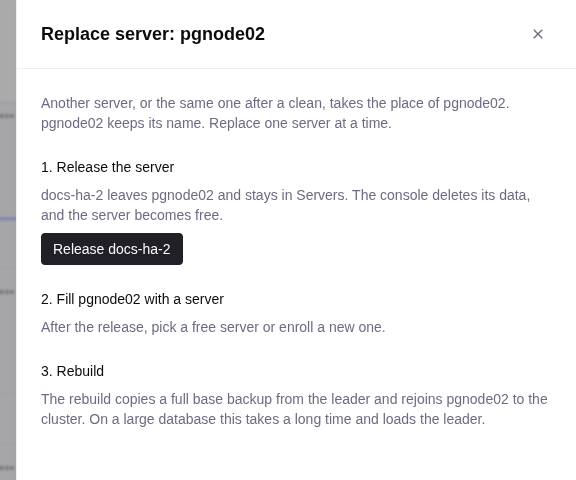
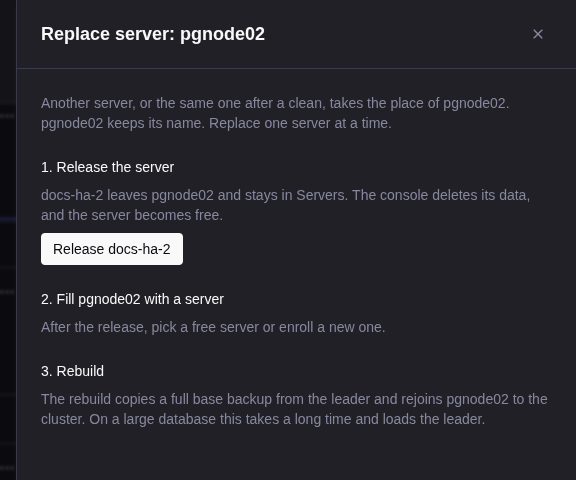
Select Release server-name, read the dialog, and select Delete the data and release. If the member is the primary, the console first switches over, and writes fail for a few seconds. The console deletes the PostgreSQL data directory, and the etcd data directory on Standard HA. You cannot undo this.
Wait until the topology shows pgnode02: no server and the Servers page shows the server as Free.
Fill the slot
Select Use a free server and a server, or Enroll a new server (see Fill an empty slot). Select Fill with the selected server. You can select the server that you released.
Rebuild
The fill starts the rebuild. The panel shows the progress. At the end, the topology shows the member as a healthy replica. If the rebuild fails, see Rebuild after a reinstall.
If the release fails, the panel shows The release failed, and the server stays in its slot. Read the operation log, correct the cause, and release again. The release refuses if the server is also a backup repository or a member of another service or DCS cluster. Remove that use first.
LiveSync sessions
- A session on this service moves to the primary and shows Deploying for a short time. The rebuild installs LiveSync on the new member.
- A session created on an early access release (
v0.X.Y-eap.N) can block the release, and the refusal names it. Stop and start the session, then release again. If its server is lost, delete the session, replace the server, and create a new session. The new session does not resume the old replication. See Sessions created on an early access release. - If the LiveSync setup fails, the member continues to wait for a rebuild. Correct the cause and retry the rebuild. Then stop and start a Running session, or start a Failed session.
Failed server
Use this procedure when a server is down: a failed disk, a lost VM, or a server that you cannot reach. If the lost member was the primary, wait until the topology shows a new primary.
Open Replace server
On the service Overview, the member shows as unreachable. Open its menu on the topology and select Replace server.
Release the server
The dialog says The server does not answer. Select Release the server. The Servers page shows the server as Unreachable and Needs cleanup.
Check the leader and fill the slot
Make sure that the topology shows a primary: the rebuild copies from it. If there is no primary, do not fill the slot. Contact support. Otherwise, fill the slot as in Fill an empty slot.
Rebuild
The fill starts the rebuild. Wait until the topology shows the member as a healthy replica. If the rebuild fails, see Rebuild after a reinstall.
Keep the old server powered off: until the cleanup runs, it can start its old services. When it is online again, the console deletes its data, and the server shows Free. If the cleanup fails, the server stays Needs cleanup with the reason. The console tries again later, or you select Retry cleanup on the server page. If you delete an unreachable server on the Servers page, its services do not stop, and the data on its disk stays.
Fill an empty slot
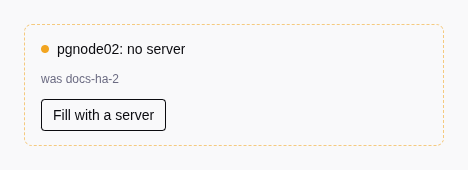
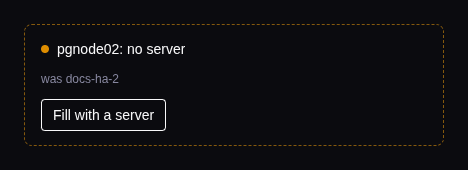
Select Fill with a server on the card, or continue in the Replace server panel.
- Use a free server. The panel lists the free servers with their LAN address and size. You cannot select an unreachable server.
- Enroll a new server. Register the server in the panel and run the enroll command on it. When the server is online, select it. If enrollment fails, see Enroll a server.
The rebuild replaces all PostgreSQL and etcd data on the server.
Rebuild after a reinstall
To reinstall the OS or replace the disk of a server and keep it in its slot, do not release it:
Reinstall and re-enroll
Reinstall the server. On the Servers page, open its menu, select Re-enroll command, and run the command on the server. The slot then waits for a rebuild.
Rebuild
On the topology, open the menu of the member, select Replace server, then select Rebuild. Wait until the topology shows the member as a healthy replica.
If a rebuild fails, the panel shows The rebuild failed and the reason. The other members continue to serve. Correct the cause and select Retry the rebuild. The retry continues from the failed step.
DCS member
On Advanced HA, etcd runs on the three servers of a DCS cluster. The DCS cluster needs 2 of 3 members. The rules of One server at a time apply to each service on the cluster. If two DCS members are lost, the refusal says another member is down (etcd quorum lost). Follow Site outage and recovery.
Before you start, make sure that the detail page of the DCS cluster shows the two other members as healthy. Each service on the cluster must meet Before you start.
Open Replace server
Open Infrastructure, then DCS clusters, and open the cluster. On the topology, open the menu of the member and select Replace server.
Release the server
Release the server as for a service member. If the server answers, the console deletes its etcd data. If it does not answer, read the warning in Failed server. The slot shows etcd03: no server.
Fill the slot
Fill the slot as in Fill an empty slot.
Rebuild
The fill starts the rebuild. With the default settings, it ends about five minutes after the new member joins. Wait until the cluster shows Healthy before you replace another member.
If the rebuild fails, correct the cause and select Retry the rebuild.
After the replacement
- Connection endpoints. With a VIP, clients do not change. Without a VIP, the direct endpoint of the member changes if the LAN address changes. Update those clients. The connection info of the service shows the new address.
- A larger server. The new member has the PostgreSQL settings of the leader. To tune them for the new size, open Database service admin and select Retune under Operations. Retune restarts PostgreSQL, with one switchover.
- The released server. When it is Free, use it for another slot or a new service, or delete it. You cannot delete it until the slot that it left completes its rebuild.
- The license. The release returns the license seat of the old server, and the fill takes a seat for the new server. This also works after the license expires. DCS servers do not use license seats.
- The backup server. The public key of the old server stays in
~postgres/.ssh/authorized_keyson the backup server. You can delete that line.