Console backups
Back up the console to a local directory or to S3-compatible storage, on a schedule or on demand, with a recovery key and retention rules.
The console holds the only copy of the servers, the services, the mesh keys, the users and the settings. Without a console backup, a lost console host means that you cannot manage, upgrade or repair your services. With a backup and its recovery key, you can restore the console on a new host.
Console backups do not back up your database services. For those, see Backups.
Open Administration → Console backups. You must be an admin. Until the setup is complete, each admin sees the banner Console backups are not set up.
To set up console backups:
Set up the recovery key
Set up and confirm the recovery key.
Keep back up after changes
Keep Back up after changes on.
Make and check a backup
Make a backup now, then check it.
What a backup holds
| Tier | Default | Contents |
|---|---|---|
| Core | Always | The console database, the mesh state and keys, the console certificates, the license files, the silences, and the TSE_* values of .env (for example TSE_AUTH_TOKEN and TSE_DB_ENCRYPTION_KEY) |
| Logs | On | The logs of the finished operations |
| Server packages | Off | The server packages that you loaded |
| Metrics | Off | The metrics history of the console |
- Turn on Server packages on an airgapped site that has no other copy of the server package files. Without this tier, load the server packages again after a restore (see Load server packages).
- Turn on Metrics to keep the metrics history after a restore. Metrics can be large: the dialog shows the size estimate. A restore of a backup with metrics replaces the current metrics.
The recovery key
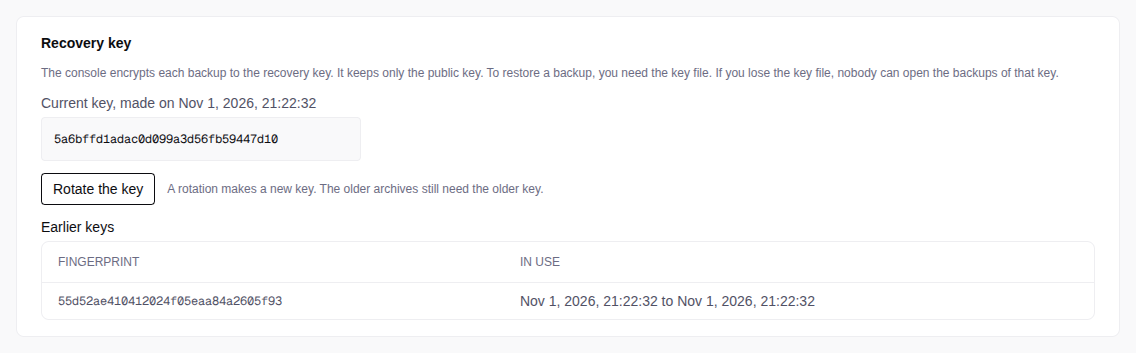
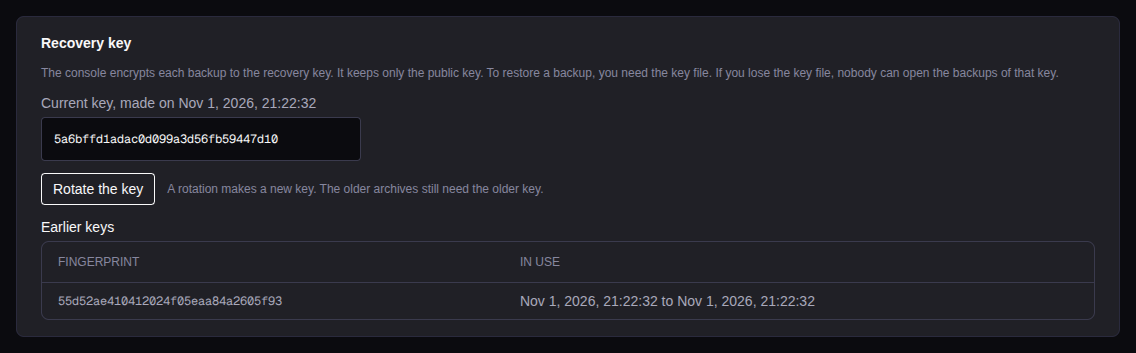
The console encrypts each backup with the recovery key.
Set up the key
Start the setup
In the Recovery key card, select Set up the recovery key.
Save the key file
Select Download the key file
(tse-recovery-key-<console>-<date>.txt), or Copy the key file. The
console shows the key one time only.
Confirm the key
Select I saved the key file in a safe place., then Confirm the key.
No backup runs until you confirm the key. If you did not save the key file, select Make a new key.
Rotate the key
Rotate the key
Select Rotate the key.
Save the new key file
Save the new key file.
Confirm the key
Select I saved the key file in a safe place., then Confirm the key.
Until you confirm, the backups use the current key. To stop the rotation, select Drop the new key. Keep each older key file as long as you keep the backups of that key. Earlier keys shows the fingerprint and the dates of each older key.
Targets
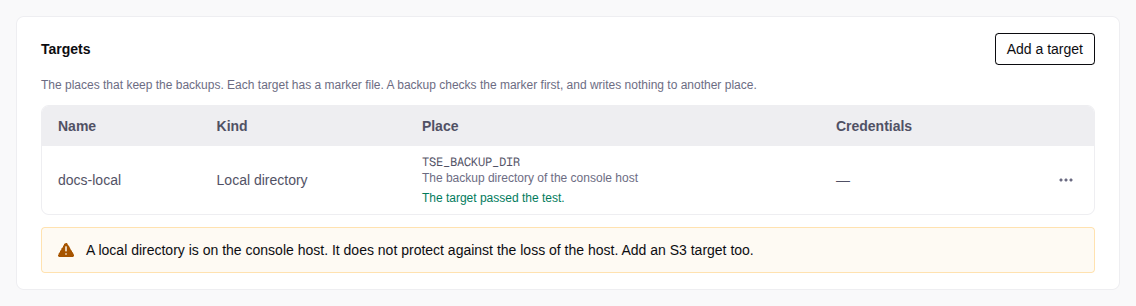
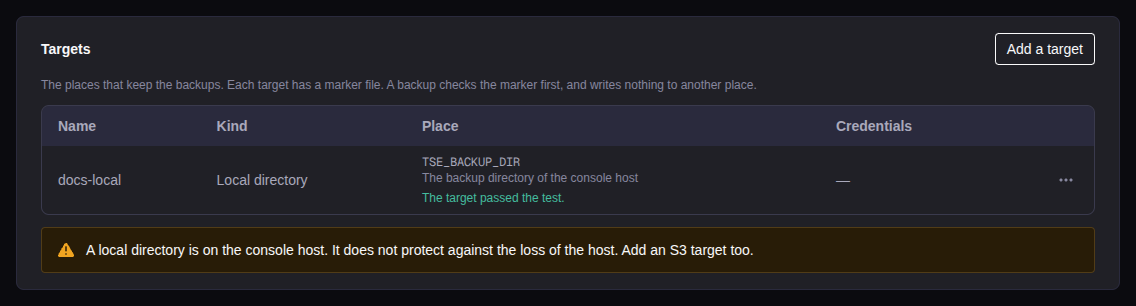
A target keeps the backups. In the Targets card, select Add a target. To test a target, open its menu and select Test.
Do not delete the file .tse-backup-target in a target. Without it, each
backup to that target fails.
Local directory
The local target is the directory TSE_BACKUP_DIR on the console host
(default /opt/tse/backups). The installer makes it. See
Data persistence.
- The console has at most one local target.
- An uninstall keeps the directory.
- A local target does not protect against the loss of the console host. Add an S3 target too, or copy the directory to another host.
S3-compatible storage
| Field | Value |
|---|---|
| Endpoint | Empty for AWS S3. For another store, the URL with the port, for example https://s3.example:9000 |
| Bucket | The bucket. It must exist. |
| Prefix | Optional. The folder in the bucket, for example consoles/c1 |
| Region | Required for AWS S3. With an endpoint and no region, the console uses us-east-1. |
| Path-style addressing | On by default with an endpoint. Most S3-compatible stores need it. |
| CA bundle | Optional, https:// only. The PEM of the CAs of the store. It replaces the system CAs. |
| Access key ID, Secret access key, Session token | The credentials. The session token is optional. |
- The key needs permission to put, get, list and delete objects. Test checks each one.
- If Test fails with a region error, set Region to the region that the error names.
- To keep the stored credentials when you edit a target, leave the credential fields empty.
- A bucket with object lock refuses the deletes of the retention. The run then shows Done with warnings.
When you remove a target, its archives stay. To remove a target that a schedule uses, change or delete the schedule first.
Schedules and retention
The first target gets this daily schedule:
| Setting | Default |
|---|---|
| Cron expression | 0 2 * * * (02:00 UTC every day) |
| Tiers | Core and Logs |
| Keep archives | 14 |
| Maximum age in days | 30 |
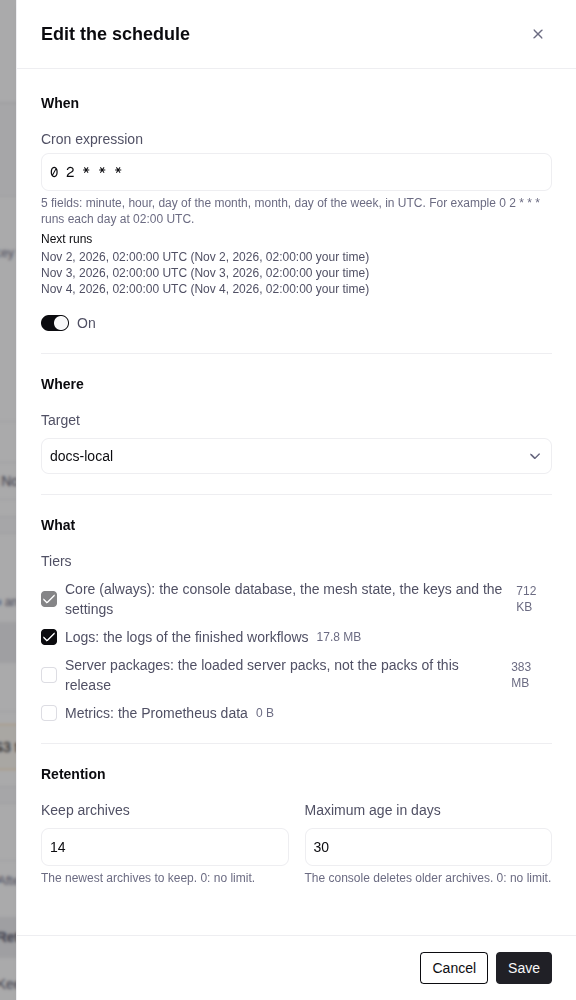
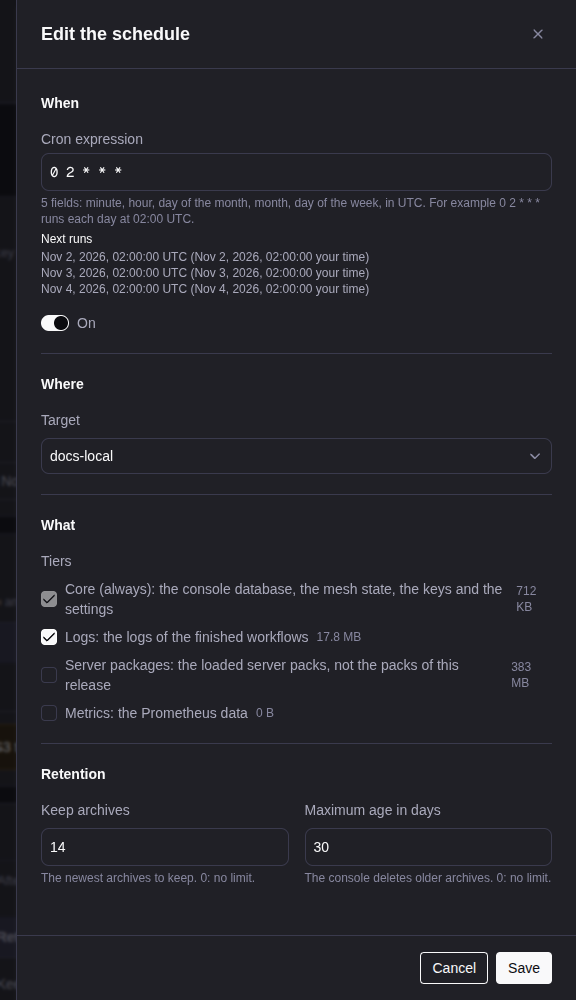
In the Schedules card, select Add a schedule, or Edit.
- Cron expression: 5 fields, in UTC. The form shows the next three runs.
- Each schedule writes to one target. For two targets, add two schedules.
- Keep archives and Maximum age in days:
0is no limit. At least one of the two must not be0.
A run that the console misses while it is down does not run later. If a backup is already running, the scheduled run shows Skipped.
After each successful run, the console deletes the archives of that schedule that are beyond the count or the age. It never deletes the newest successful archive of the schedule, a manual archive, an archive of another console, or an archive that failed its check (delete that one yourself).
Back up after changes
When Back up after changes is on (the default), each schedule that is on runs one time 10 minutes after the last of these changes:
- a server enrolls or is deleted;
- a service is created or deleted.
Keep it on. A restore rolls the console back to the time of the backup (see What a restore rolls back).
Back up now
In the Backups card, select Back up now. Select the target and the tiers. The backup runs in the background. Runs shows when it ends. Only one backup runs at a time.
The backup list
The Backups card lists the archives of all targets, newest first.
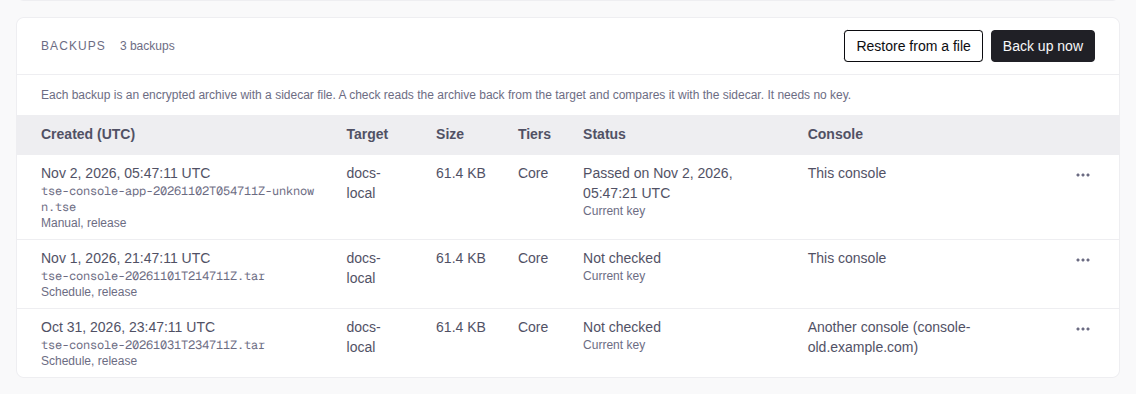
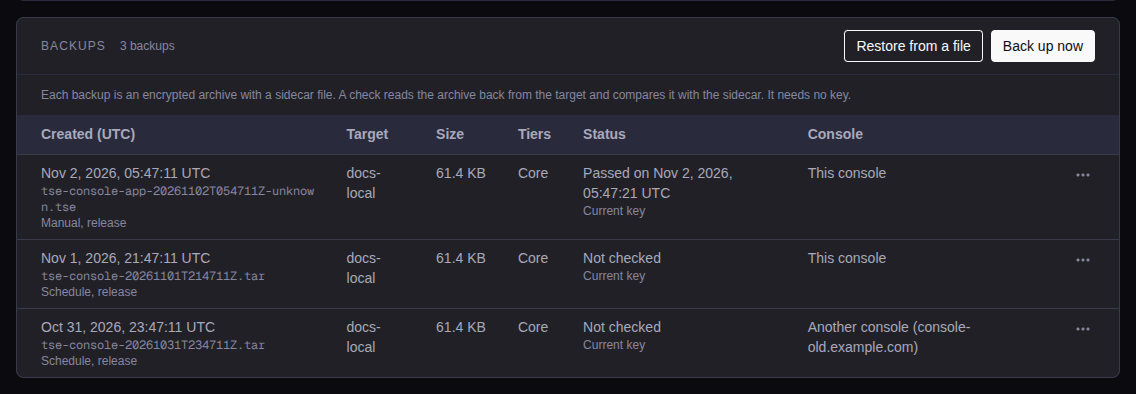
- Status: the check (Not checked, Passed on a time, Failed on a time, or Check failed after the upload), and the key that opens the archive (Current key, Earlier key (date) or Unknown key).
- Console: This console, or Another console with its name.
The menu of each archive:
- Download: keep a copy away from the console host.
- Check: reads the archive back and compares its size and SHA-256. Each backup runs this check after the upload.
- Delete: you cannot undo it.
- Restore: see Restore in place. To restore an archive that you have as a file, select Restore from a file.
An archive of another console shows only Download.
Runs shows each backup with its trigger (Manual, Schedule, After changes), its status (Running, Done, Done with warnings, Failed or Skipped) and its error.
Alerts
ConsoleBackupFailed: the last backup of a schedule failed.ConsoleBackupStale: the newest backup of a schedule is too old (26 hours for the daily schedule).
A failed manual backup fires no alert. See Alerts.