SQL browser
Run SQL against a database service in the console, read-only by default, browse its schema, and see the query limits and the query history.
The SQL tab of a running service has a query editor, a results grid and
a schema browser. Queries run on the primary as the postgres superuser. You
need the admin role, also for read-only queries.
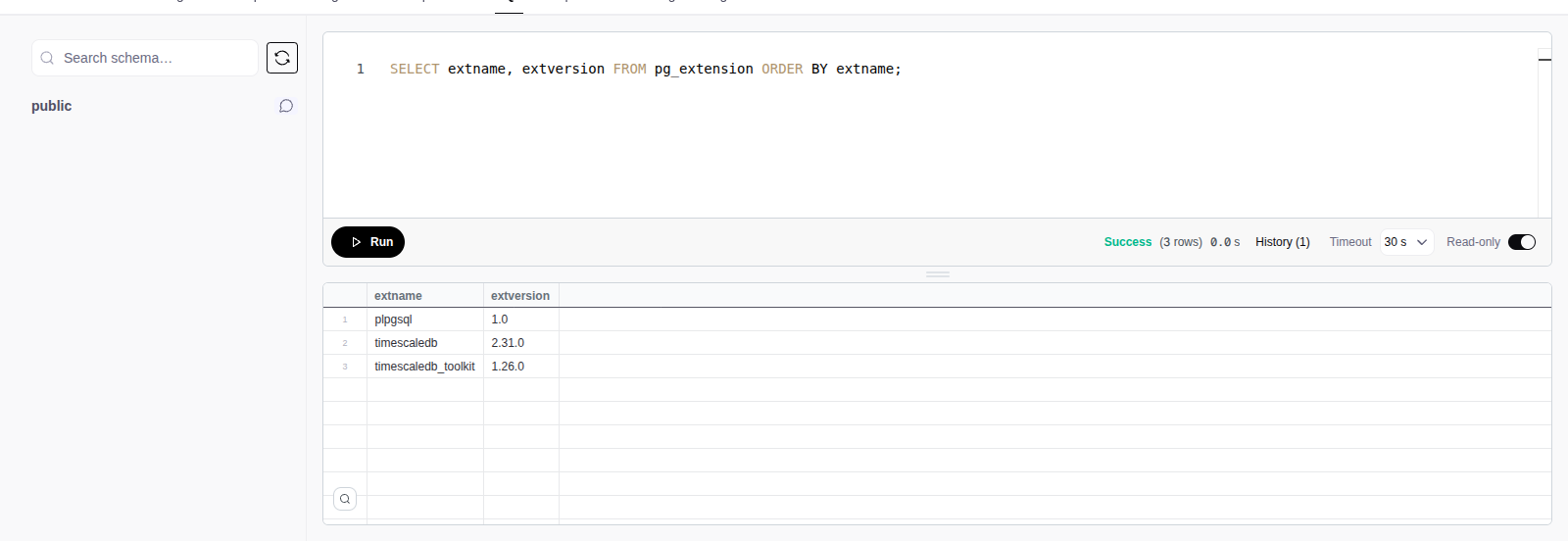
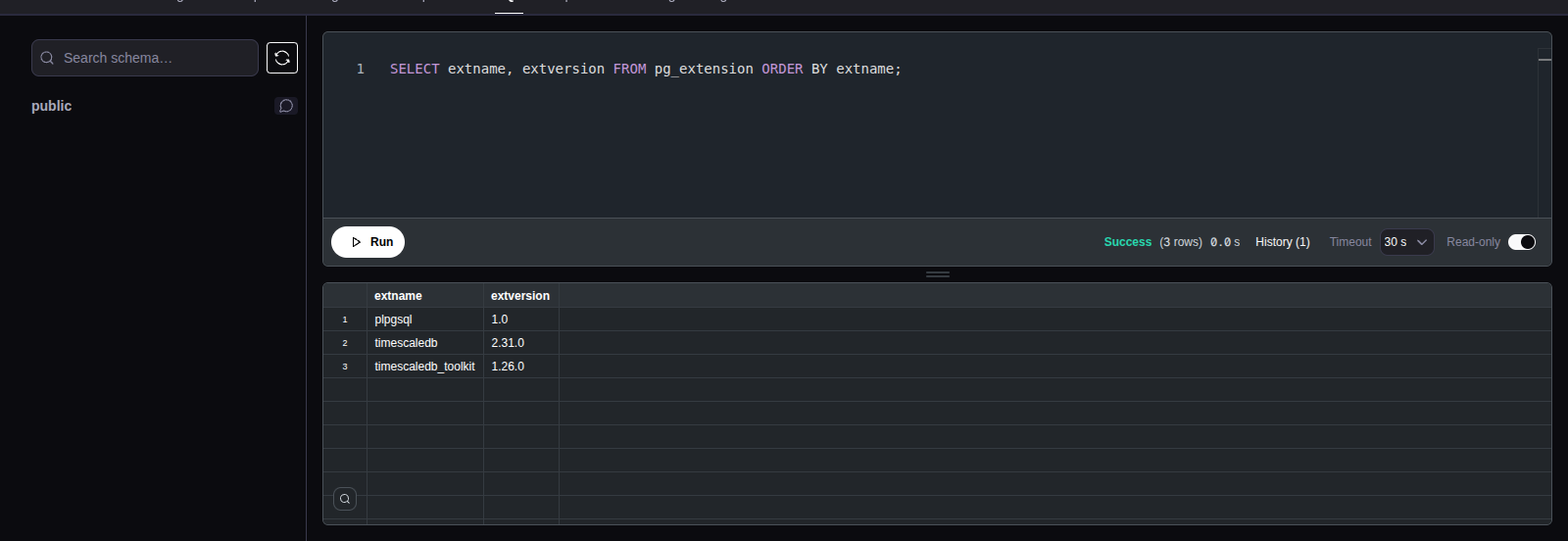
Read-only by default
A session starts read-only. A write or DDL statement fails with
cannot execute ... in a read-only transaction. To make changes, turn off
Read-only in the editor toolbar.
Query editor
- Select Run. If you select part of the text, only the selection runs.
- A script with more than one statement runs in order. The grid shows the result of the last statement.
- Cancel a running query to stop it on the database.
- The audit log records each query with its timeout and the first 4 KB of its SQL.
Limits
| Limit | Value |
|---|---|
| Timeout, read-only | Default 30 seconds, maximum 2 minutes |
| Timeout, read-only off | Default 30 seconds, maximum 15 minutes |
| Rows in a result | 100,000 |
Select the timeout in the editor toolbar. When you turn Read-only on, a timeout above 2 minutes changes to 2 minutes.
At 100,000 rows, the statement stops, and the toolbar shows Showing the
first 100,000 rows. This is the row limit. Add WHERE, ORDER BY, or
LIMIT and OFFSET to see other rows.
Query history
Select History in the editor toolbar. It has the last 50 queries of the service. Select Insert to put a query in the editor, or Run to run it again. Clear history deletes the list. The history stays in this browser only.
Schema browser
The sidebar shows the objects of the service database. Hypertables and continuous aggregates show chunk and compression details.
- Type in the search box to filter the tree.
- Right-click an object for its actions, for example Copy qualified name, View definition and Copy SELECT statement.
- Preview 100 rows runs a
SELECTof the first 100 rows. - After DDL, select the refresh button next to the search box. This also updates the suggestions of the editor.