Single sign-on
Let users log in with your OIDC identity provider, for example Okta or Microsoft Entra ID, map groups to roles, and turn off the local login.
The console supports OIDC identity providers, for example Okta, Microsoft Entra ID or Keycloak. An admin sets SSO on Administration → Single sign-on. A save applies at once.
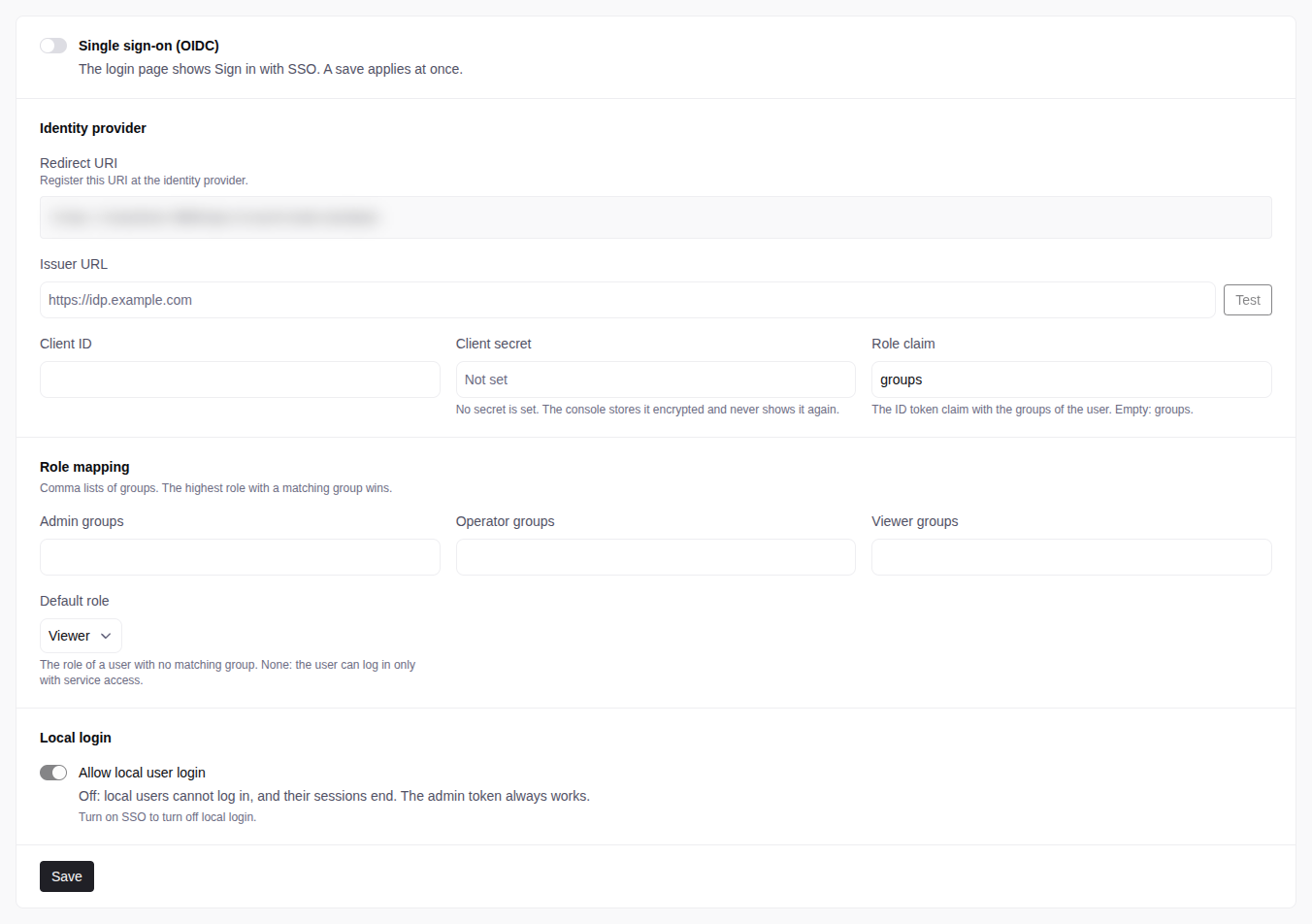
Set up SSO
Add an application at your identity provider
Add an OIDC web application (authorization code flow) with the scopes
openid, email and profile. Register the Redirect URI
that the Single sign-on page shows.
Enter the application
Enter the Issuer URL, the Client ID and the Client secret. Set the roles. Click Test to check the issuer.
Turn on SSO
Turn on Single sign-on (OIDC) and click Save. The login page then shows Sign in with SSO.
To keep the stored client secret, leave the field empty. If you change
TSE_DB_ENCRYPTION_KEY, the page shows
The stored secret cannot be read. Enter it again. SSO logins fail until you
enter the secret again.
Roles
| Field | Default | Purpose |
|---|---|---|
| Role claim | groups |
The ID token claim that holds the groups. |
| Admin groups, Operator groups, Viewer groups | (empty) | Comma-separated groups that get that role. |
| Default role | Viewer | The role with no matching group. With None, a user needs service access to log in. |
The highest matching role wins. The match is case-sensitive. A change at your identity provider applies at the next login.
Examples
Add a groups claim groups to the ID token, with a filter such as
“Starts with tse-”. Then set:
- Admin groups:
tse-admins - Operator groups:
tse-operators, tse-oncall - Viewer groups:
tse-viewers - Default role: None
In the app registration, under Token configuration, add a groups claim for the ID token. Enter the object IDs of the groups in the group fields.
If a user is in too many groups, Entra sends no groups claim. Limit the
claim to the groups assigned to the application, or set Role claim to
roles and enter app role values.
Turn off local login
While SSO is on, an admin who logged in with SSO or the admin token can turn off Allow local user login and click Save. Then:
- Local users cannot log in. The console shows
Local login is off. Log in with SSO. - The open sessions of local users end at once.
- The login page shows Sign in with SSO and Use the admin token. The admin token still works.
When you turn SSO off, local login comes on again.
When the identity provider is down
Sign in with SSO shows
The console cannot reach the identity provider. Try again, or ask an admin.
Local users and the admin token can still log in. If local login is off, log
in with the admin token and turn Allow local user login on again.